Each team member can have their own availability schedule, separate from the account-level schedule. This is essential when team members work different days or hours — for example, one staff member might work Monday to Wednesday while another works Thursday to Saturday.
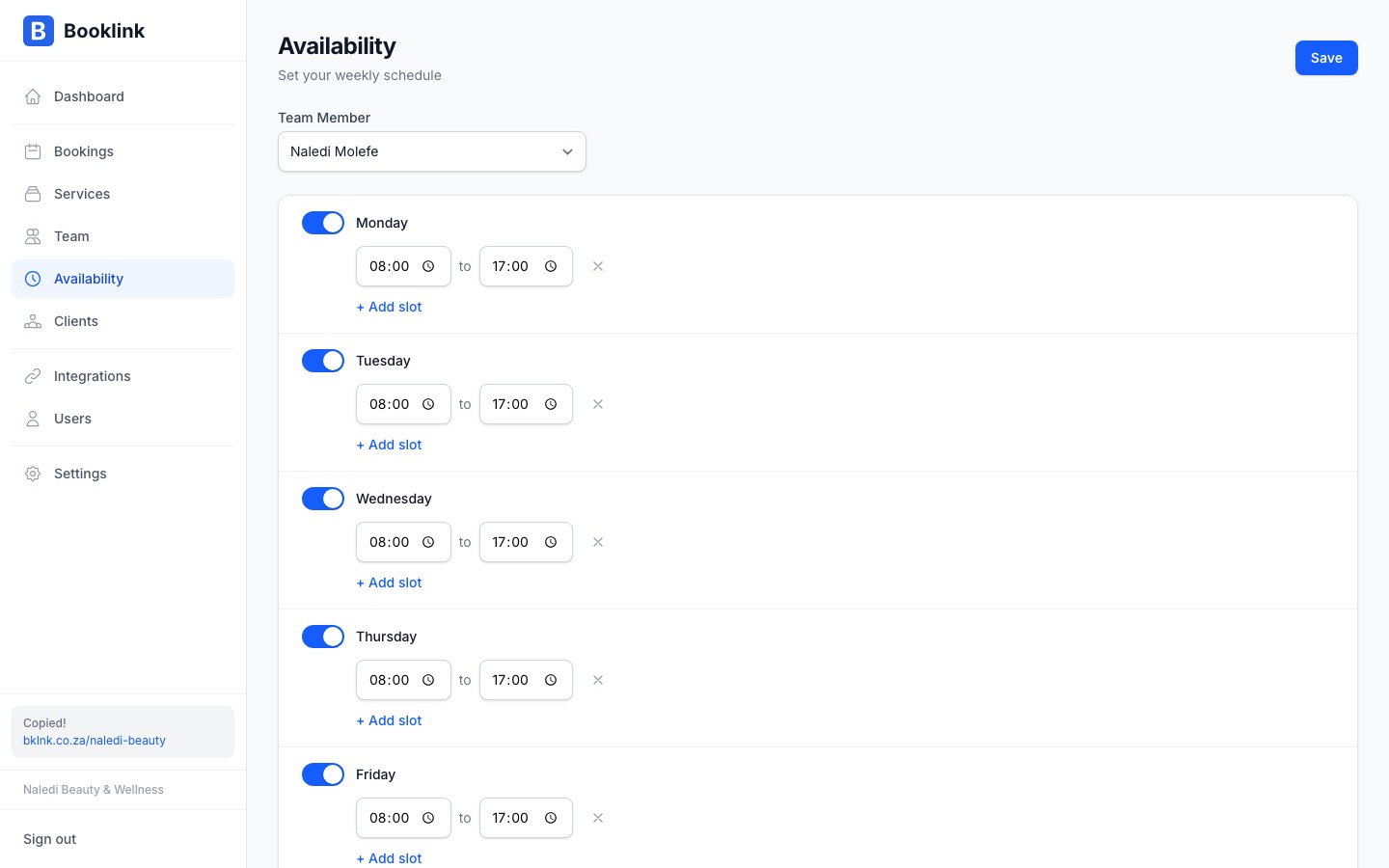
How per-member availability works
When a client selects a team member on the booking page, Booklink uses that team member's availability schedule to determine which time slots to show. If the team member has no availability rules, no slots will be shown for them — even if the account-level schedule has slots for that day.
This means each team member needs their own schedule configured. You can model this in several ways depending on how your team works:
- Fixed days — Thandi works Tuesday, Thursday, and Saturday from 09:00 to 17:00. These are the only days clients can book with her.
- Part-time hours — Sipho is a part-time nail technician who works Monday and Wednesday mornings only, 08:00 to 13:00.
- Full-time like the owner — Naledi works Monday to Saturday 08:00 to 17:00, matching the salon's opening hours.
Setting a team member's schedule
- 1
Open Availability
Navigate to Availability in the left sidebar.
- 2
Select the team member
Use the team member selector at the top of the page to switch to the team member you want to configure. Their current schedule (or empty state if none) will be displayed.
- 3
Add their time slots
Click Add time slot and set the days and hours for this team member. Repeat for each day they work. You can also add multiple time slots per day if they take a lunch break — see Managing multiple time slots for details.
- 4
Add team-member blockouts
If this team member has upcoming leave or days off, add blockouts for those dates while their schedule is selected. Blockouts are per team member — Thandi's leave doesn't affect Naledi's availability.
Naledi Beauty's team setup
At Naledi Beauty & Wellness, the full team schedule looks like this: Naledi (owner) works Monday to Saturday 08:00–17:00. Thandi (nail technician) works Tuesday, Thursday, and Saturday 09:00–17:00. Sipho (massage therapist) works Monday, Wednesday, and Friday 10:00–18:00. Each has their own schedule, so clients only see available slots for the specific person they're booking.Note
If a team member has login access, they can update their own availability schedule when logged in. They can only see and edit their own schedule — not other team members' schedules or account-level settings.Google Calendar integration per team member
Each team member with login access can connect their own Google Calendar. When connected, any event marked as "Busy" in their Google Calendar will automatically block the corresponding time in Booklink — preventing double bookings.
For example, if Thandi has a dentist appointment blocked in her Google Calendar from 10:00 to 11:00 on Thursday, that slot won't be shown to clients when booking with Thandi on that day.
Team members connect their Google Calendar from the integrations section of their account settings when logged in.