Your weekly schedule tells Booklink which days and hours you're available for appointments. It repeats every week automatically — so once you've set it, you don't need to update it unless your regular hours change. Clients can only book time slots that fall within your schedule.
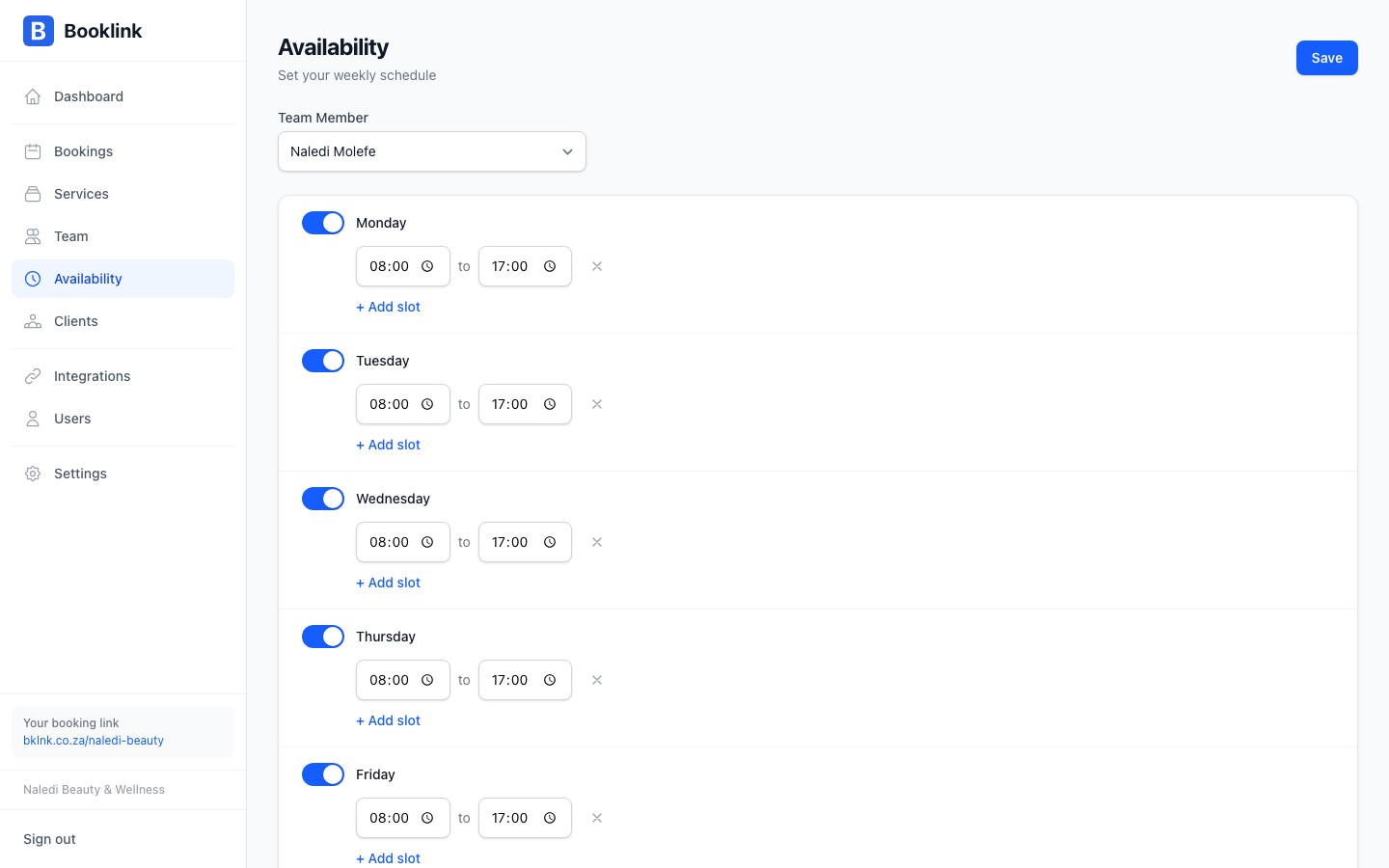
How the weekly schedule works
The weekly schedule is a set of availability rules — one for each time block when you're open. Each rule specifies:
- Day of the week — Which day this rule applies to (Monday through Sunday)
- Start time — When you start accepting appointments
- End time — When you stop accepting appointments
For example, Naledi Beauty & Wellness is open Monday to Saturday, 08:00 to 17:00. That means six availability rules — one per day — each running from 08:00 to 17:00.
Booklink uses these rules to generate available time slots each day. For a 45-minute service, it will offer slots at 08:00, 08:45, 09:30, and so on up to the last slot that fits before 17:00.
Setting up your weekly schedule
- 1
Open Availability
Click Availability in the left sidebar. If you haven't set up a schedule yet, the page will be empty. Click Add time slot to create your first rule.
- 2
Choose a day
Select the day of the week for this rule from the dropdown. To add multiple days with the same hours, you'll create a separate rule for each day.
- 3
Set your start and end times
Enter the start time and end time for that day. For example, 08:00 to 17:00. Make sure the end time is after the start time, and that there is enough time for at least one appointment before the end time.
- 4
Save the rule
Click Save. Repeat for each day you work. Your calendar will immediately start showing available slots on those days.
Set up all your working days at once
Work through each day you operate in one sitting to make sure the schedule is complete before you start sharing your booking link. A day with no availability rules will show no available slots to clients.Note
The weekly schedule sets your maximum availability. Actual available slots will be fewer if you have existing bookings, blockout times, or (if connected) busy events in your Google Calendar.