Every booking has a status that tells you where it sits in the workflow and a payment status that tracks whether the client has paid. Opening a booking shows you the full picture: client details, service, time, notes, and the complete notification log.
Opening a booking
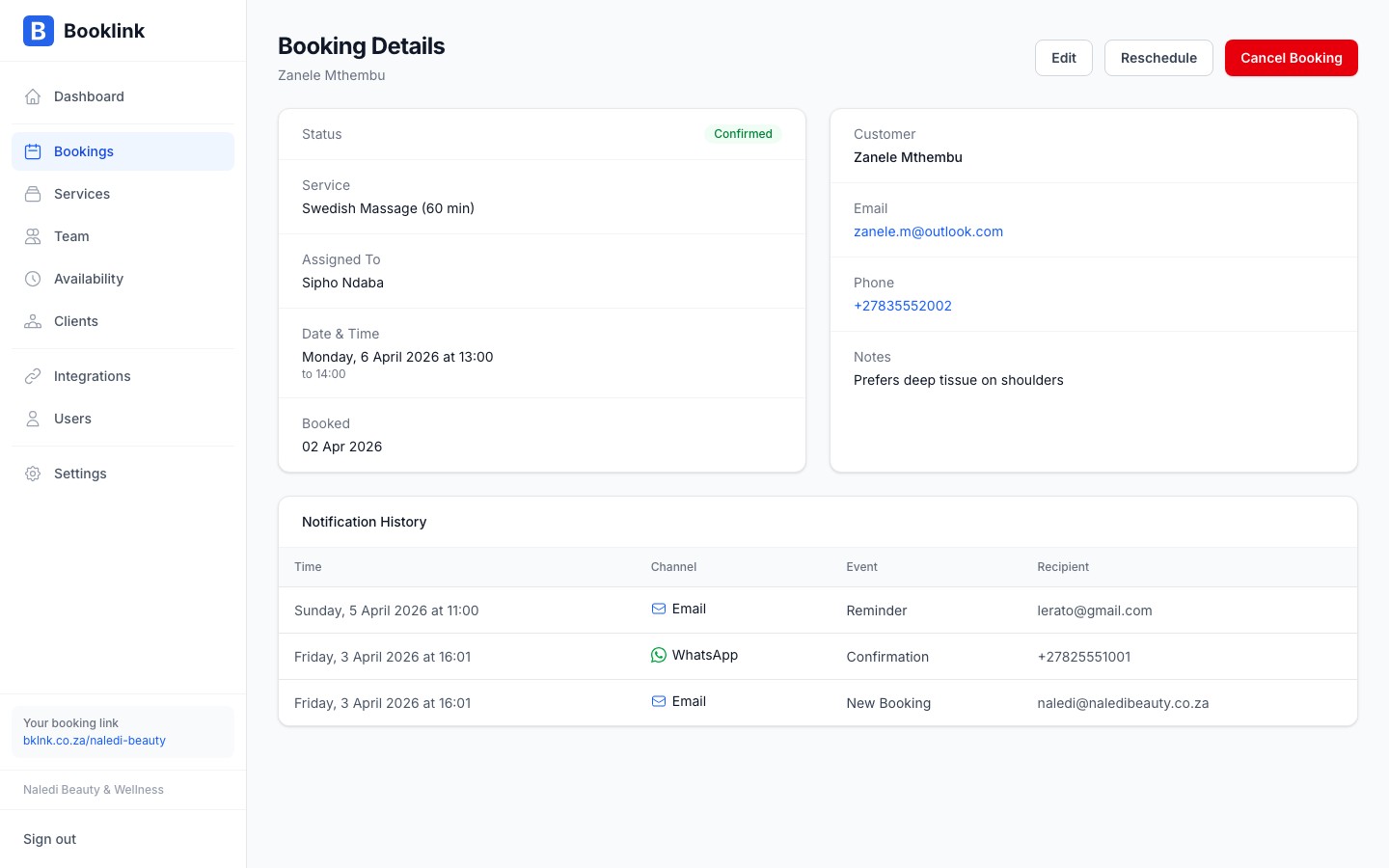
Click any booking block in calendar view, or any row in list view, to open the booking detail panel. The panel slides in from the right and shows all information without leaving the page.
Booking status
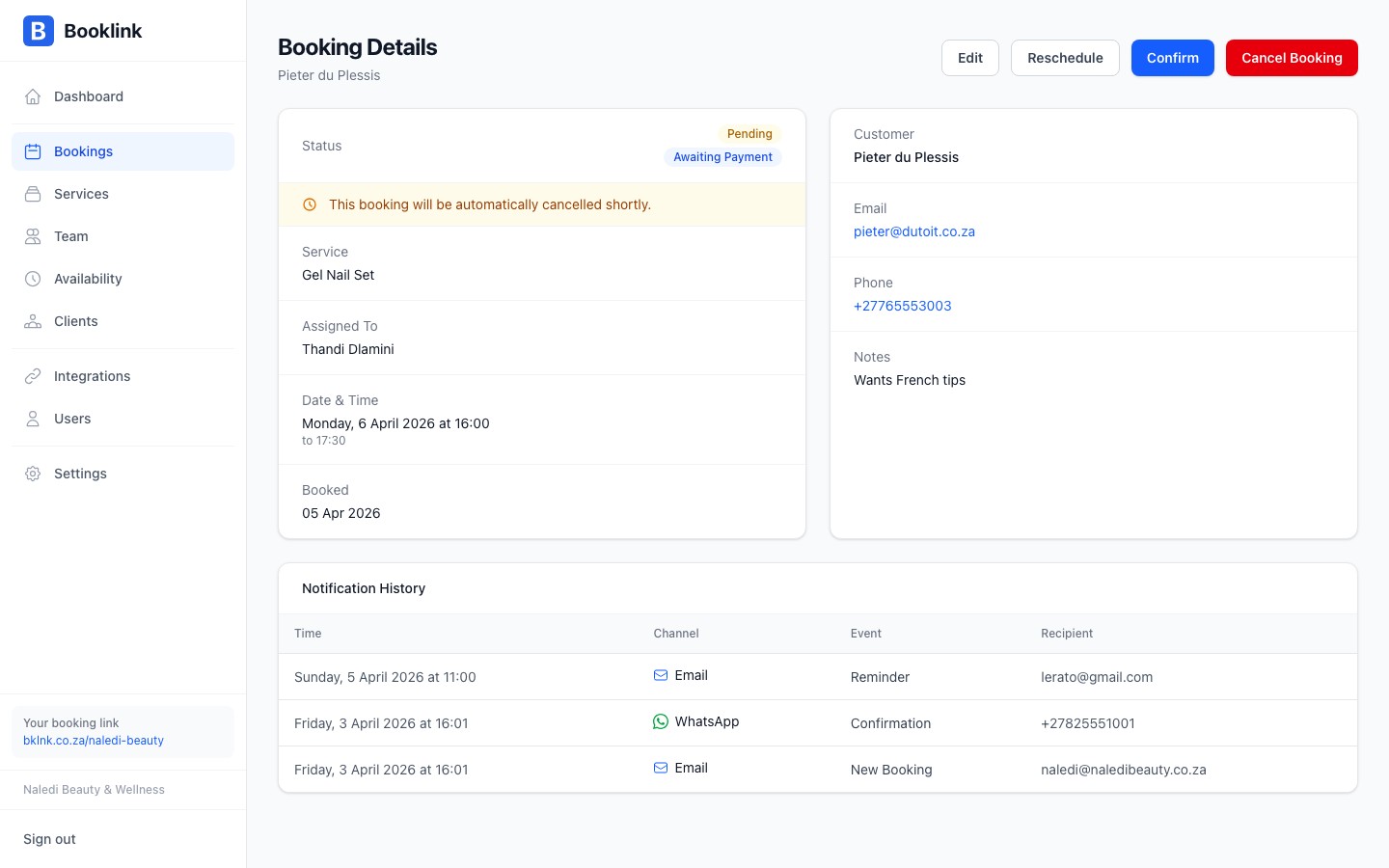
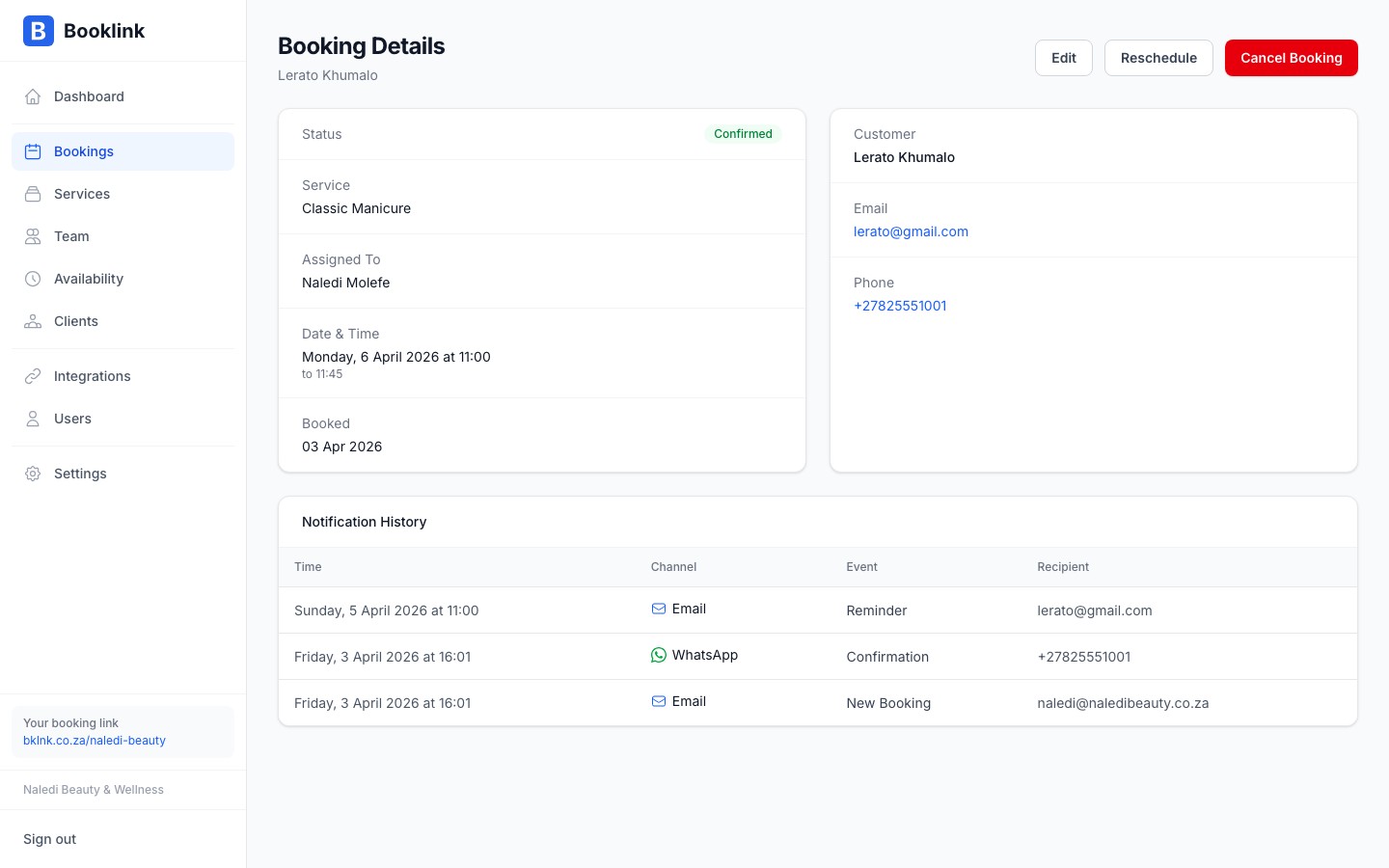
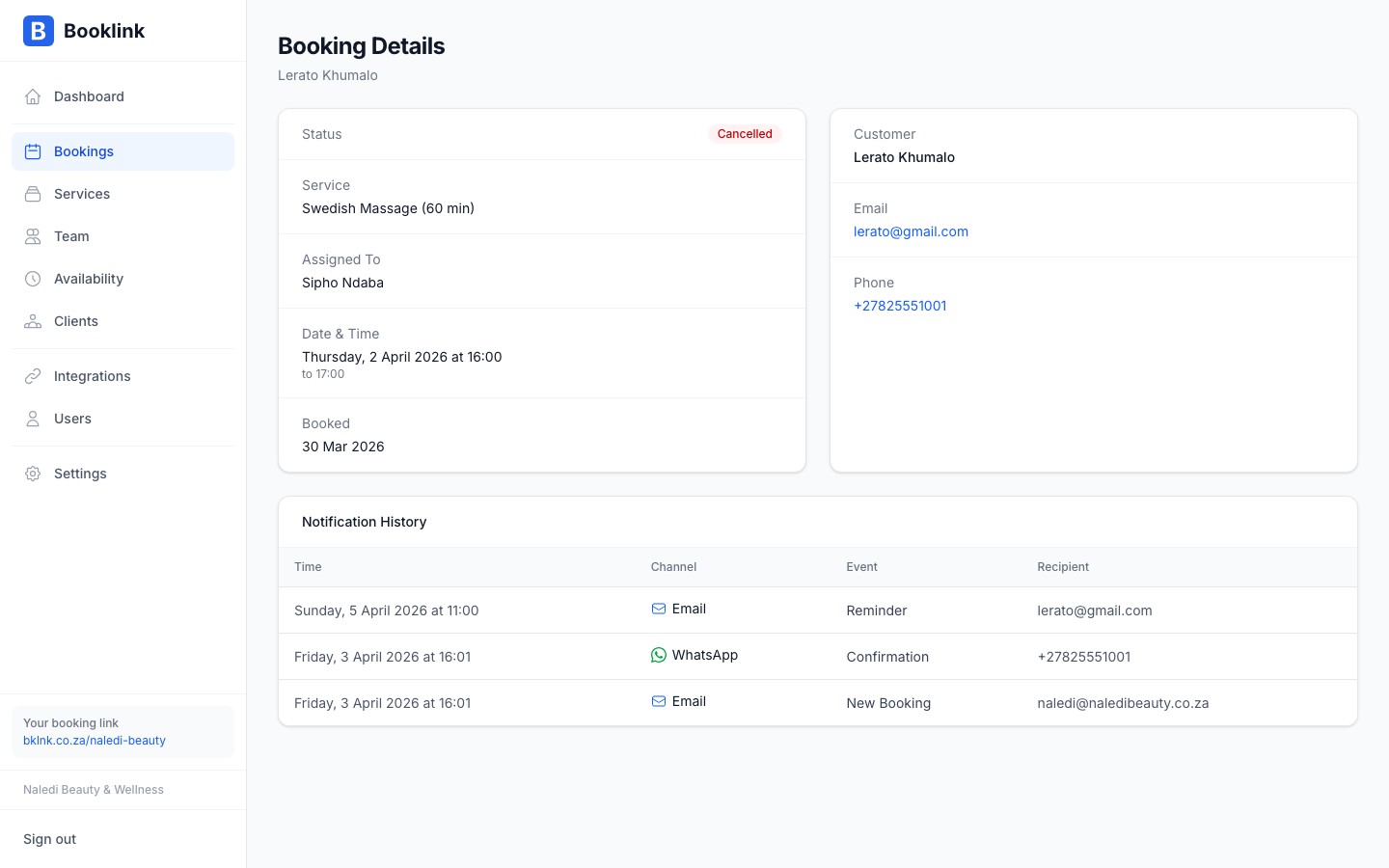
A booking can be in one of three states:
- Pending — the client has submitted a booking request but it has not yet been confirmed. The slot is tentatively held. You will receive an email notification and can confirm or cancel from the detail panel.
- Confirmed — the booking is accepted. The client receives a confirmation email (and WhatsApp message if enabled) with details and a link to manage their booking.
- Cancelled — the booking has been cancelled, either by you or by the client via their self-service link. The slot is released.
Payment status
If your service requires upfront payment, the booking also shows a payment status:
- Unpaid — no payment has been collected yet. For free services this will always show as unpaid.
- Paid — the client has completed checkout and payment was successful. The booking is automatically confirmed when payment succeeds.
- Failed — the client attempted payment but it was declined or cancelled. The booking remains pending until they retry or you cancel it.
Free services
Services with a price of R0 do not go through checkout, so their payment status will always show as unpaid. This is expected — it simply means no payment was required.