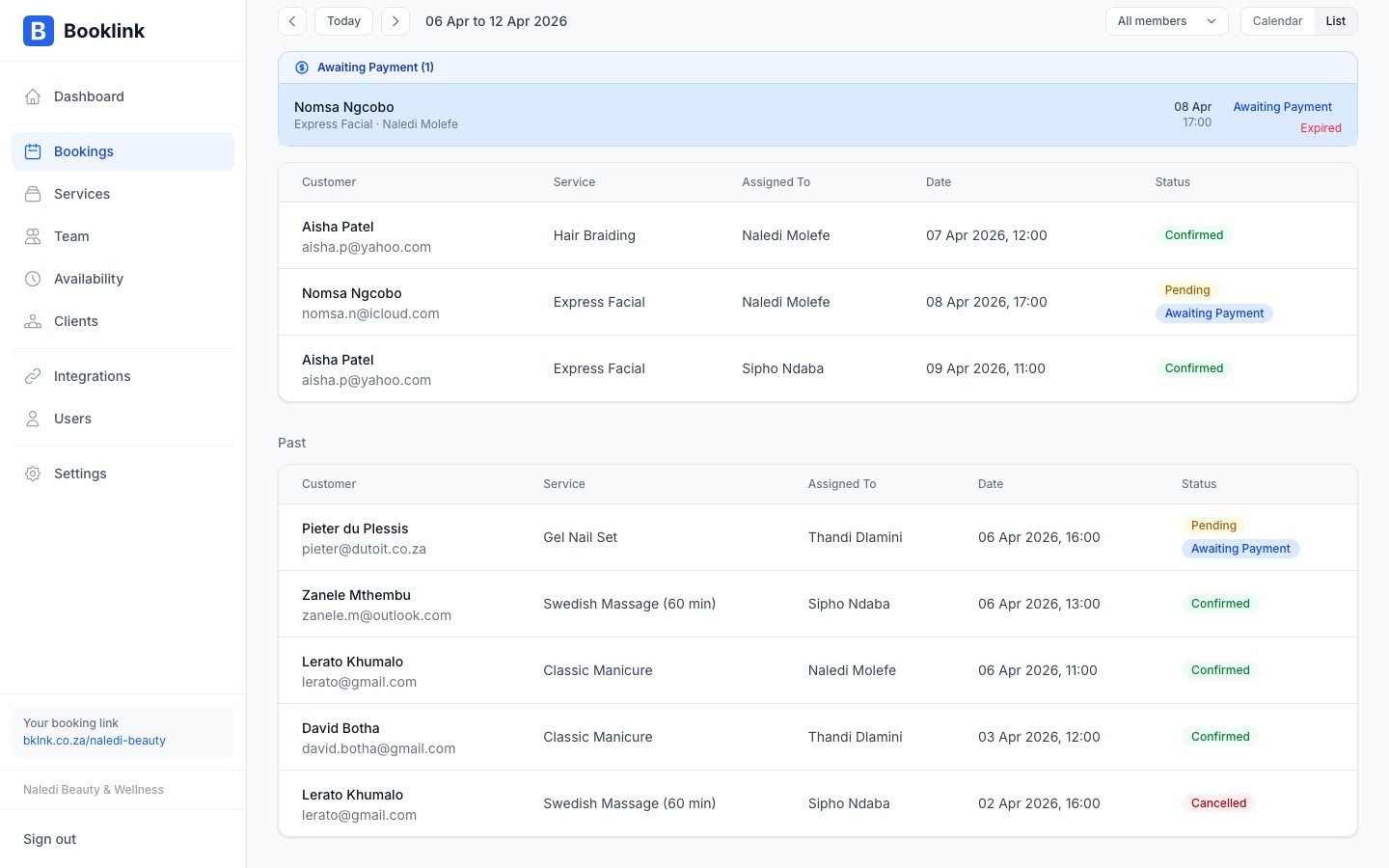
The Bookings page is your central view of all upcoming and past appointments. You can switch between a visual calendar and a flat list, jump between weeks, and narrow the view to a specific team member.
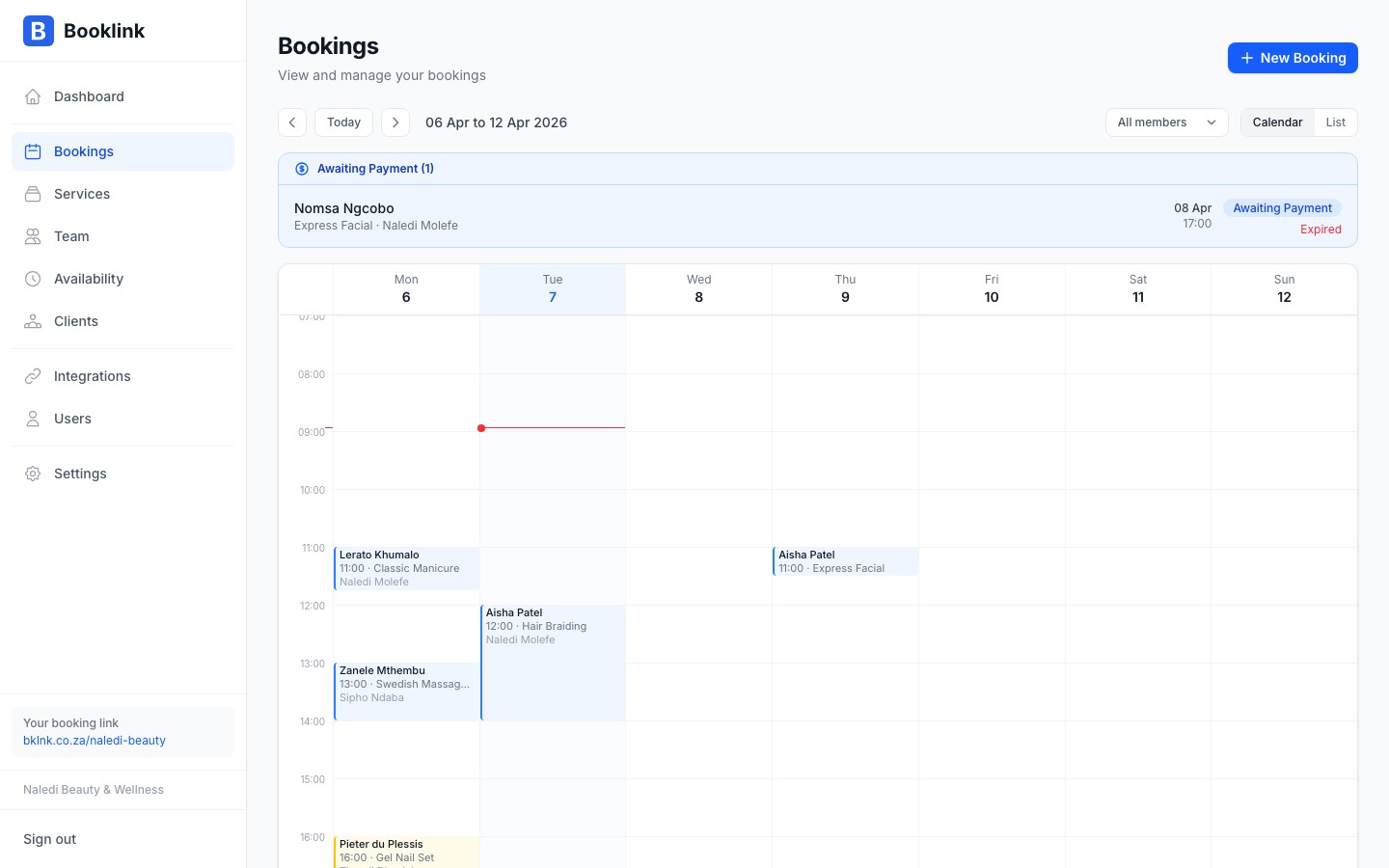
Calendar view vs list view
Booklink gives you two ways to look at your bookings:
- Calendar view — a week-by-week grid with each booking shown as a coloured block at its scheduled time. Useful for spotting gaps and busy periods at a glance.
- List view — a chronological list of bookings with key details (client name, service, time, status) in a compact table. Useful for scanning many bookings quickly or checking status at a glance.
Toggle between the two using the Calendar and List buttons in the top-right corner of the Bookings page.
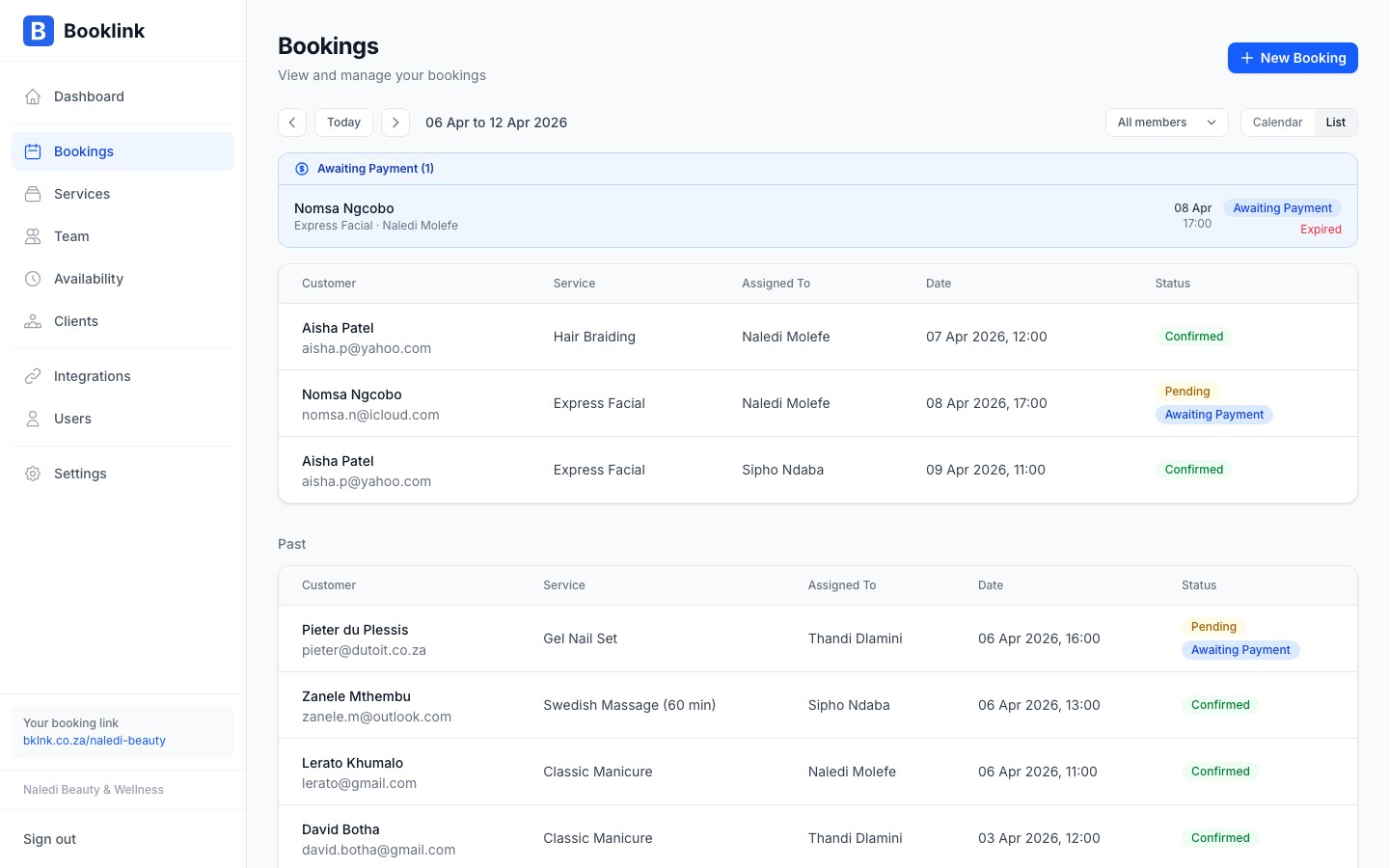
Navigating weeks
Use the left and right arrow buttons at the top of the calendar to move backwards or forwards one week at a time. The date range currently in view is shown between the arrows.
Click Today at any time to jump back to the current week. In list view the same navigation controls scroll through booking dates in chronological order.
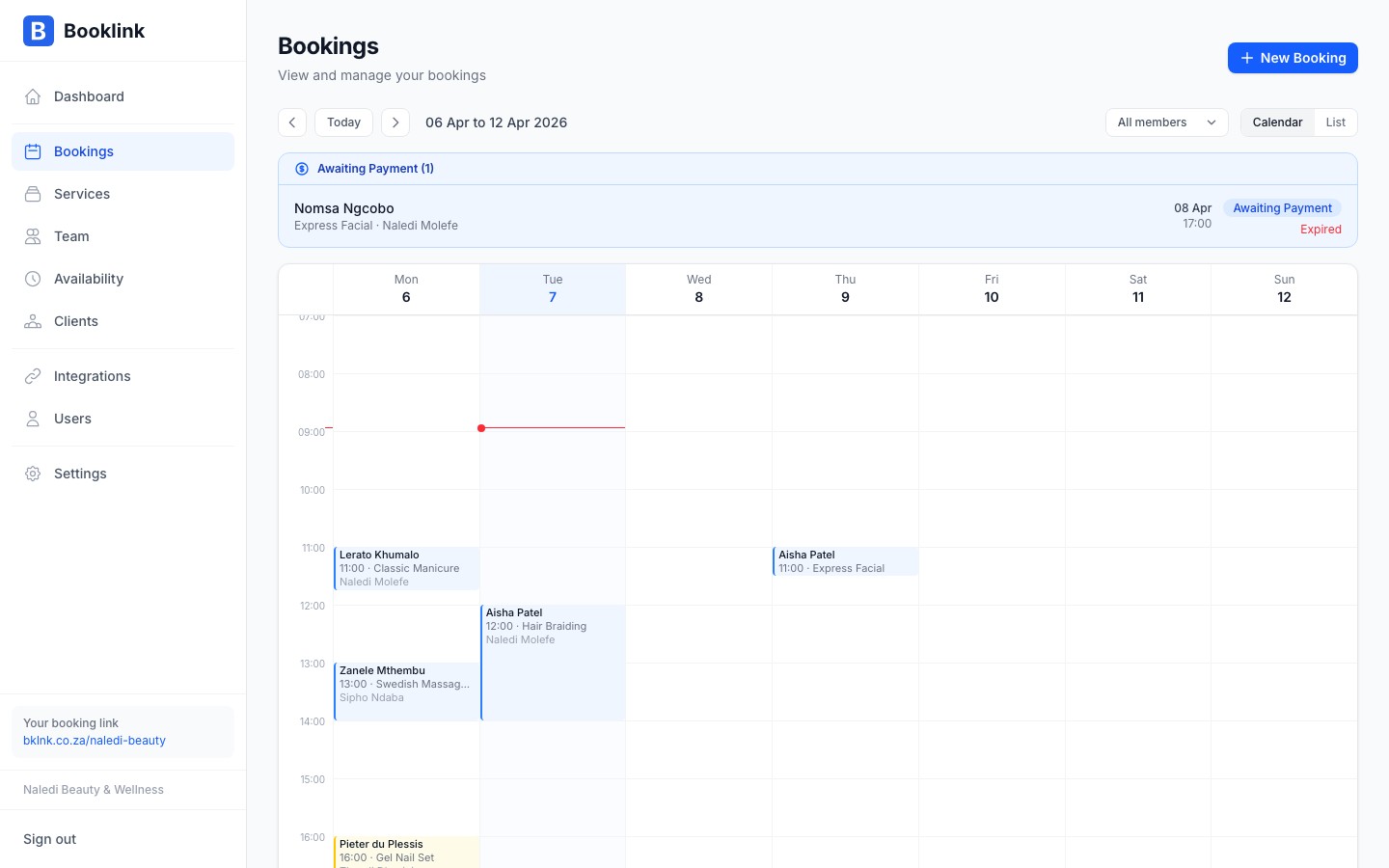
Filtering by team member
If your account has more than one team member, a Team filter appears above the calendar. Select any team member from the dropdown to see only their bookings. Select All team members to return to the combined view.
Tip
When a team member logs in with a member-level account they automatically see only their own bookings. The team filter is most useful for admin users who manage the full roster.Past bookings
Completed and cancelled bookings from previous weeks remain accessible. Navigate backwards using the arrow buttons to review history, or switch to list view and scroll down past today's date. Past bookings are shown with a muted style to distinguish them from upcoming ones.