Clicking on any client in the list opens their full profile. Here you can see their contact details, update any information, and review every booking they have ever made with your business.
Client profile
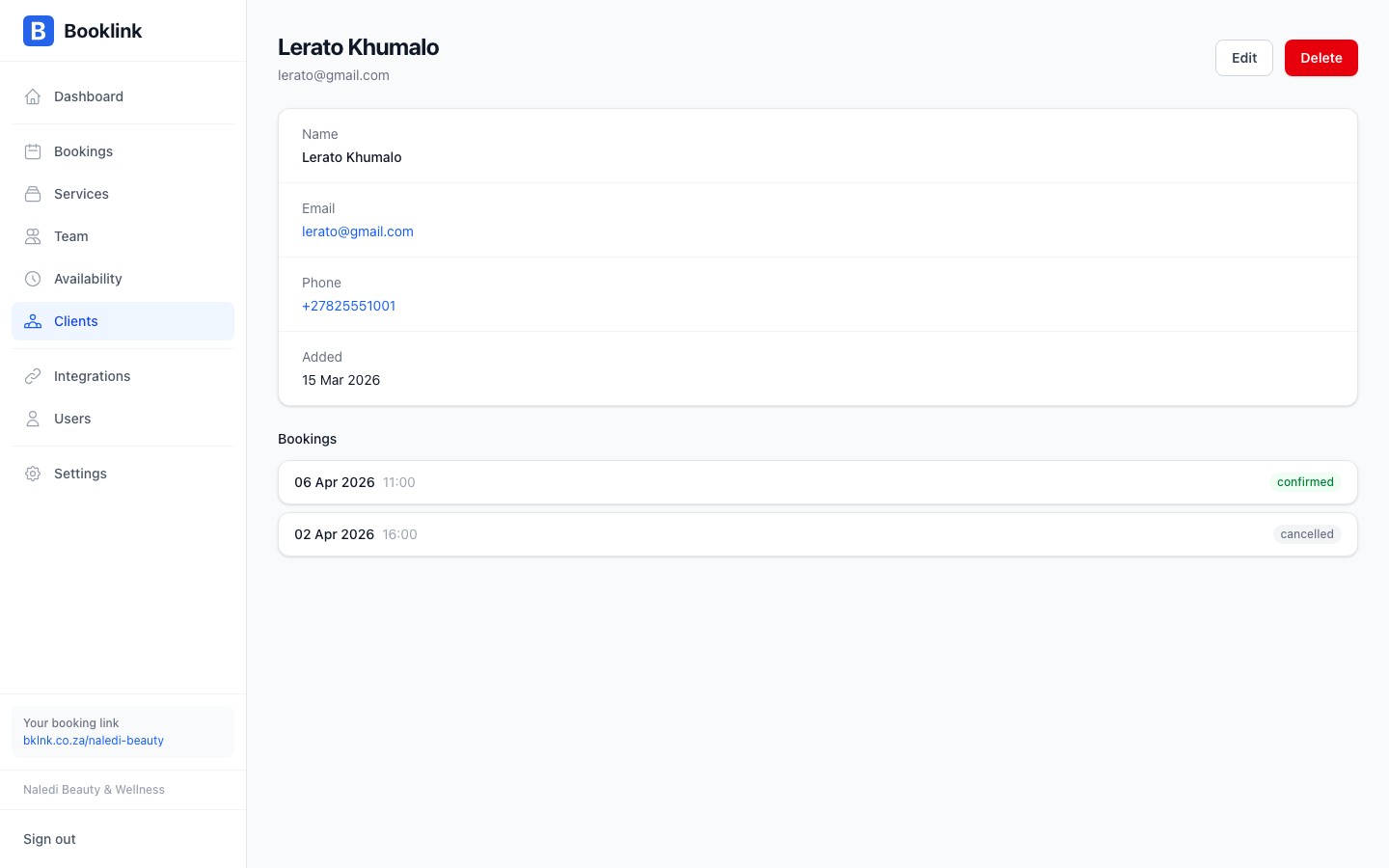
The client detail page shows:
- Full name
- Email address
- Phone number
- Date added — when the client record was first created in your account
Editing client information
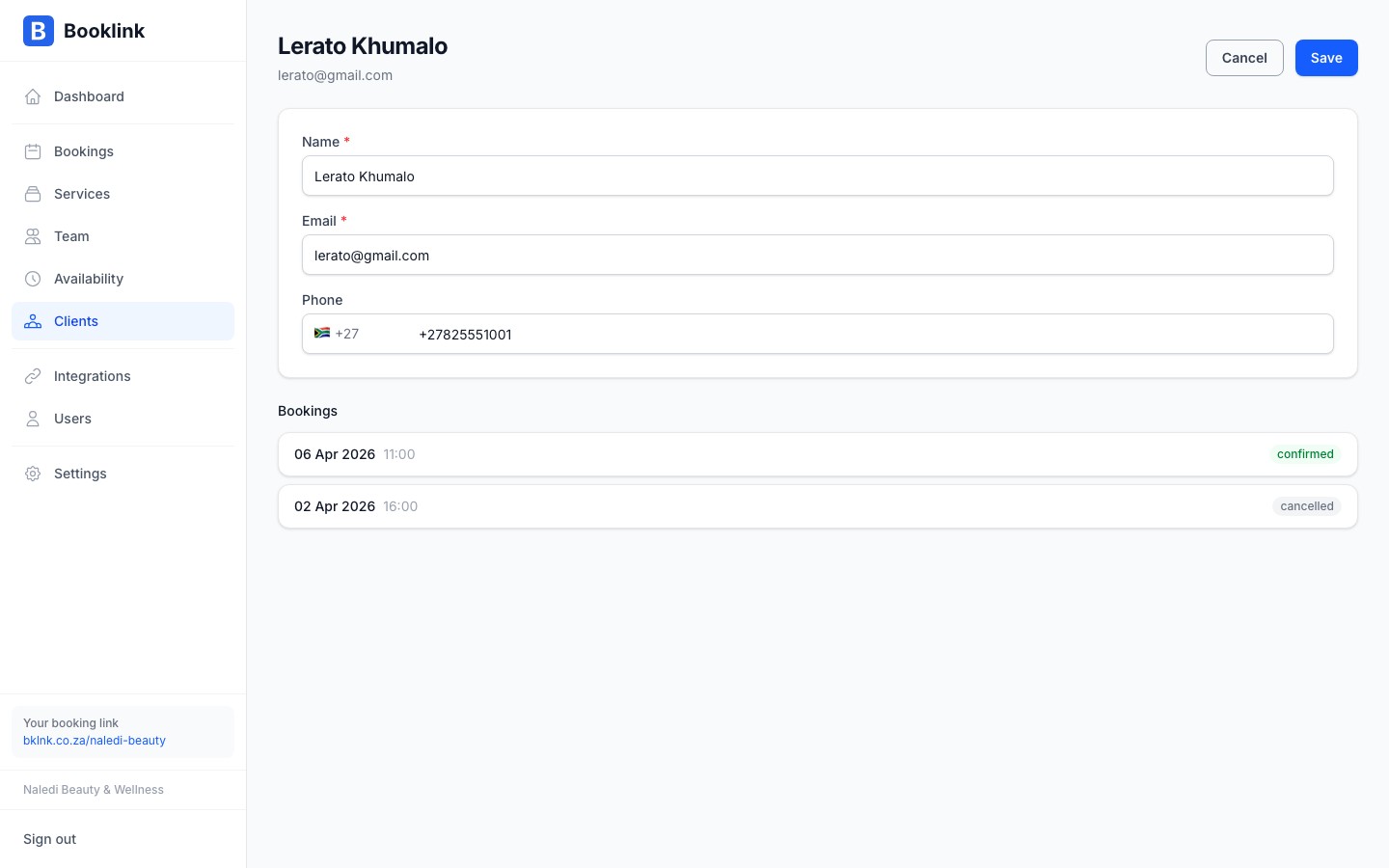
To update a client's details, click the Edit button on their profile page. You can change their name, email address, and phone number. Click Save when done.
Changing email addresses
If you update a client's email address, future booking confirmation and reminder emails will go to the new address. It does not affect any notifications already sent.Booking history
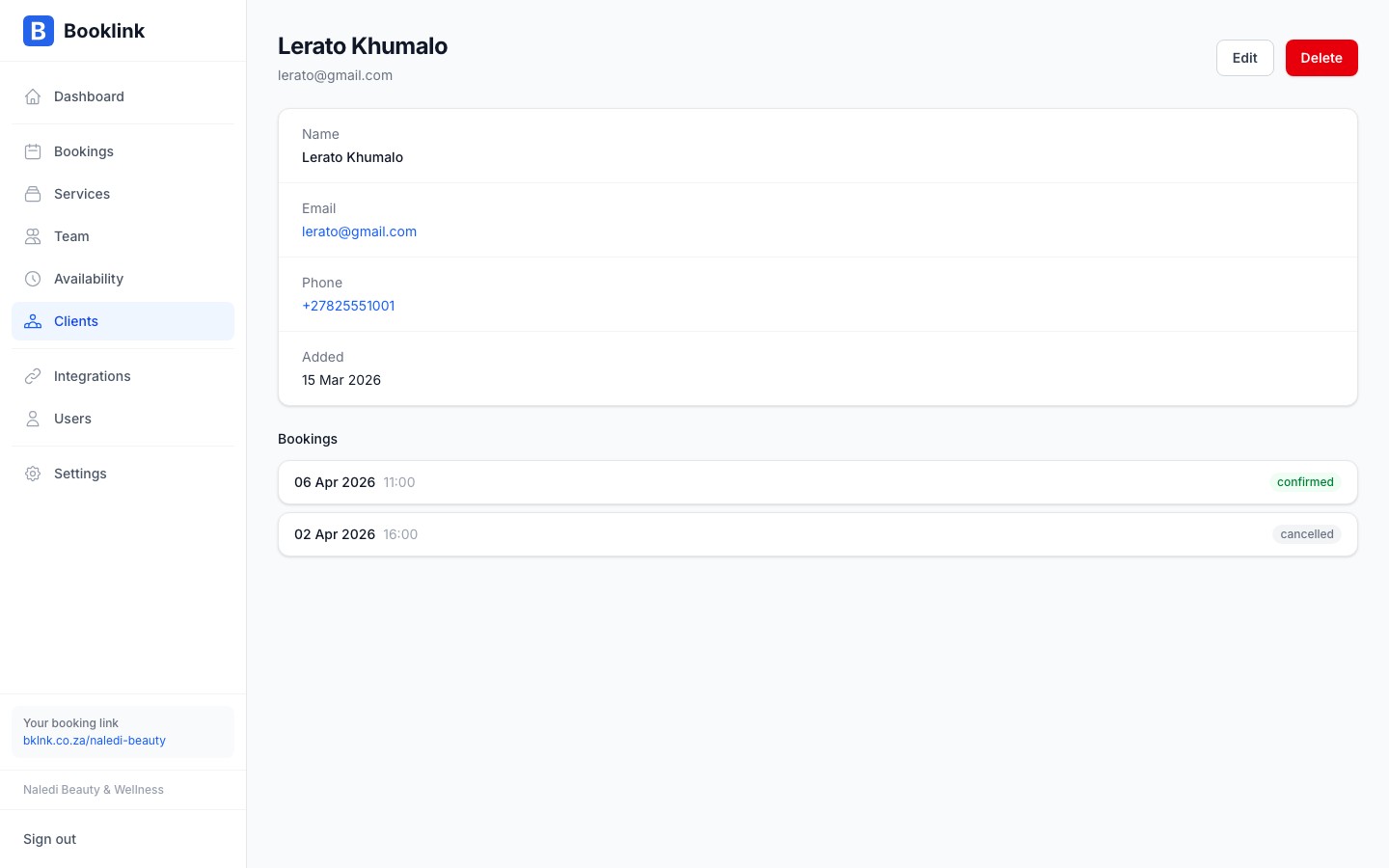
Below the contact details is a complete list of every booking the client has made. Each entry shows the service booked, the date and time, the assigned team member, and the booking status (confirmed, cancelled, etc.).
Click any booking in the history list to open its full detail panel, where you can take actions like reschedule or cancel.
Repeat client insights
The booking history is a quick way to see how often a client visits and which services they prefer. This is useful for personalising their experience or following up with clients you have not seen in a while.