Getting started with Booklink takes just a few minutes. You'll create an account with your business name and email address, verify your email with a one-time code, and then land on your dashboard ready to set up your first service.
How to create your account
- 1
Go to the registration page
Visit booklink.co.za and click Get started free, or go directly to app.booklink.co.za/register.
- 2
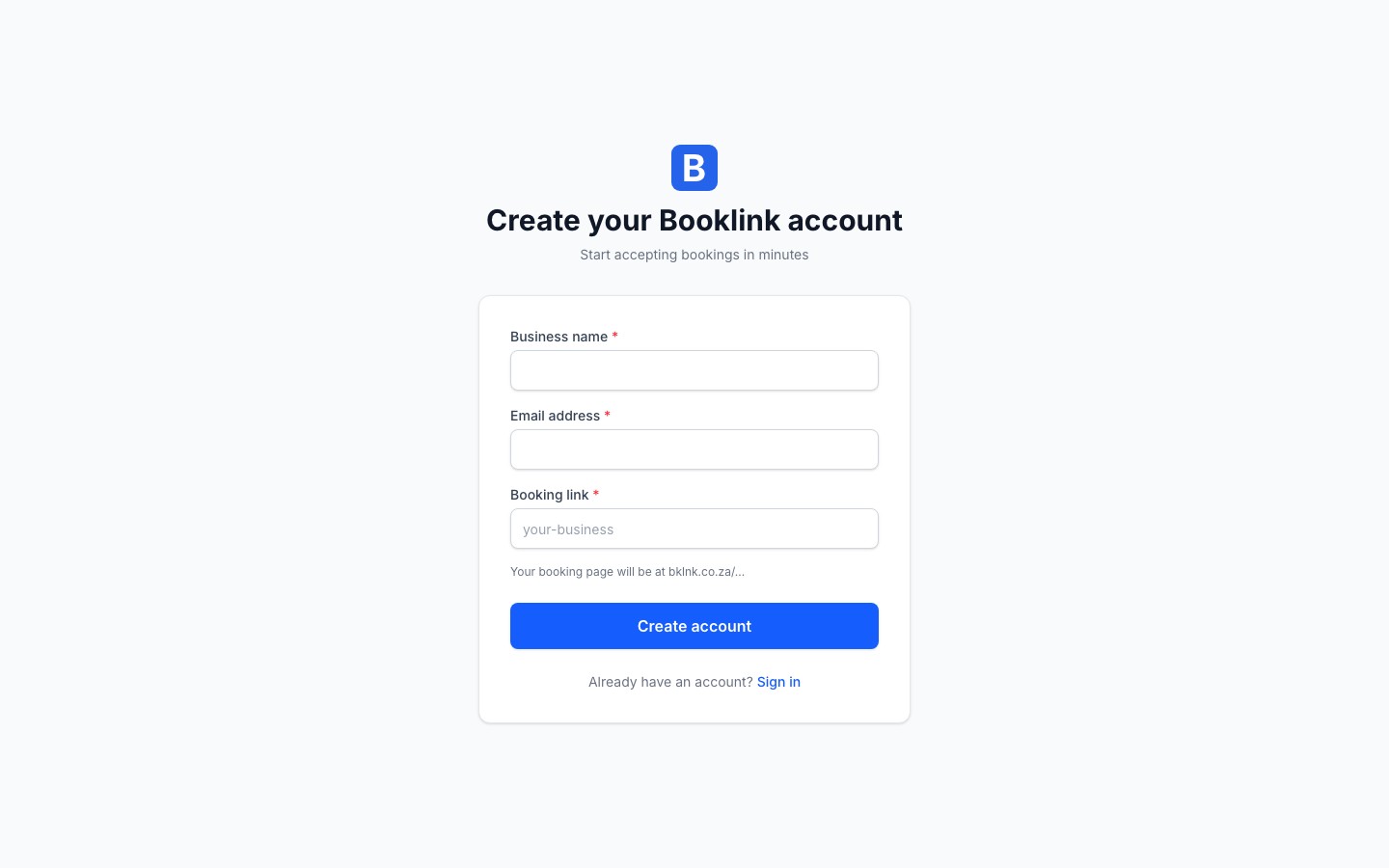
Enter your business details
Fill in the registration form with the following:
- Business name — This appears on your booking page (e.g. "Naledi Beauty & Wellness")
- Email address — Used for login and booking notifications
- Booking slug — The short URL identifier for your booking page (e.g. "naledi-beauty"). This becomes
booklink.co.za/book/naledi-beauty
The slug can only contain lowercase letters, numbers, and hyphens. Choose something short and memorable — your clients will type or click this link.
- 3
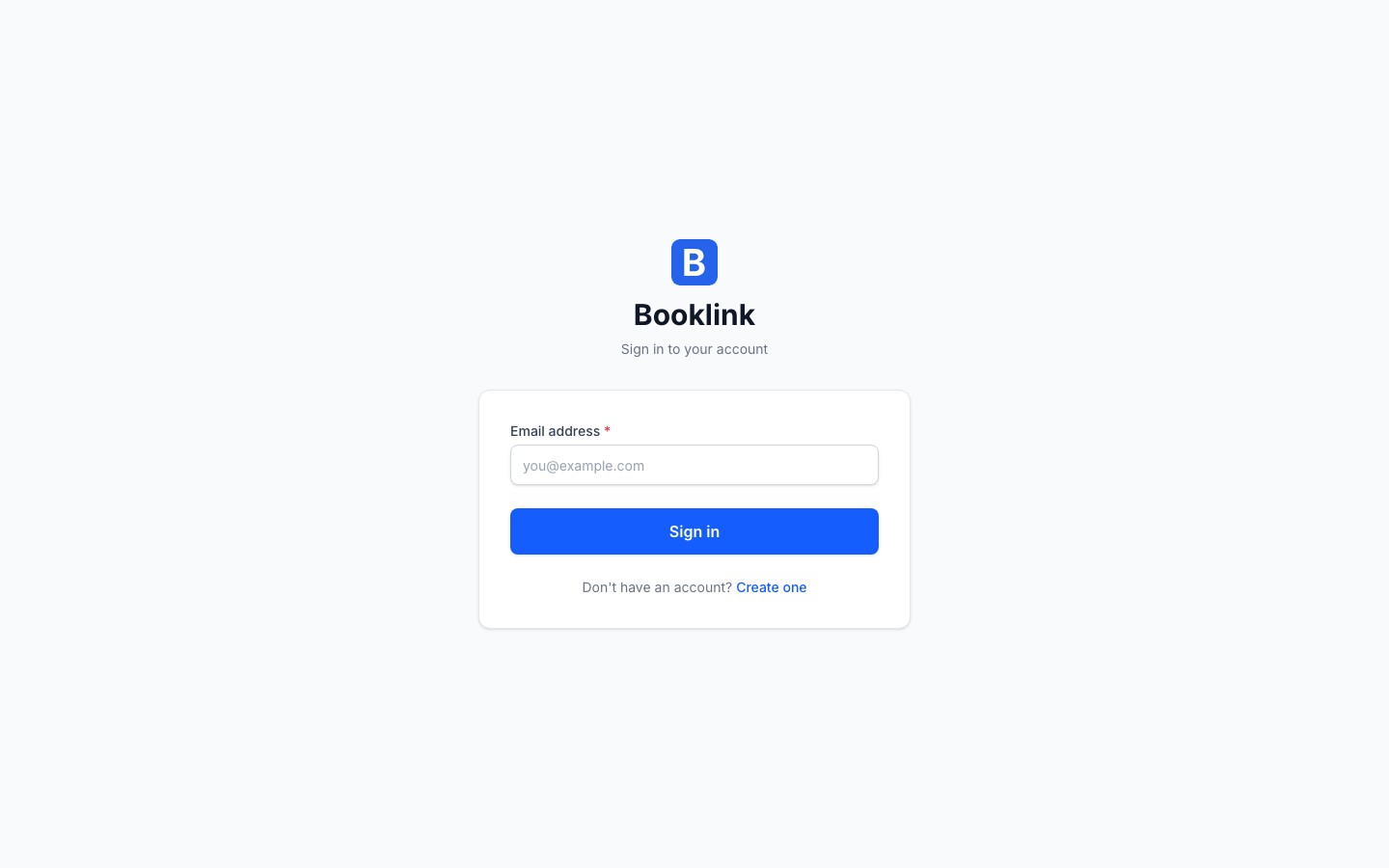
Verify your email address
After submitting the form, Booklink sends a 6-digit one-time password (OTP) to your email address. Open your email and enter the code on the verification screen.
The code is valid for 10 minutes. If you don't receive it within a minute or two, check your spam folder.
- 4
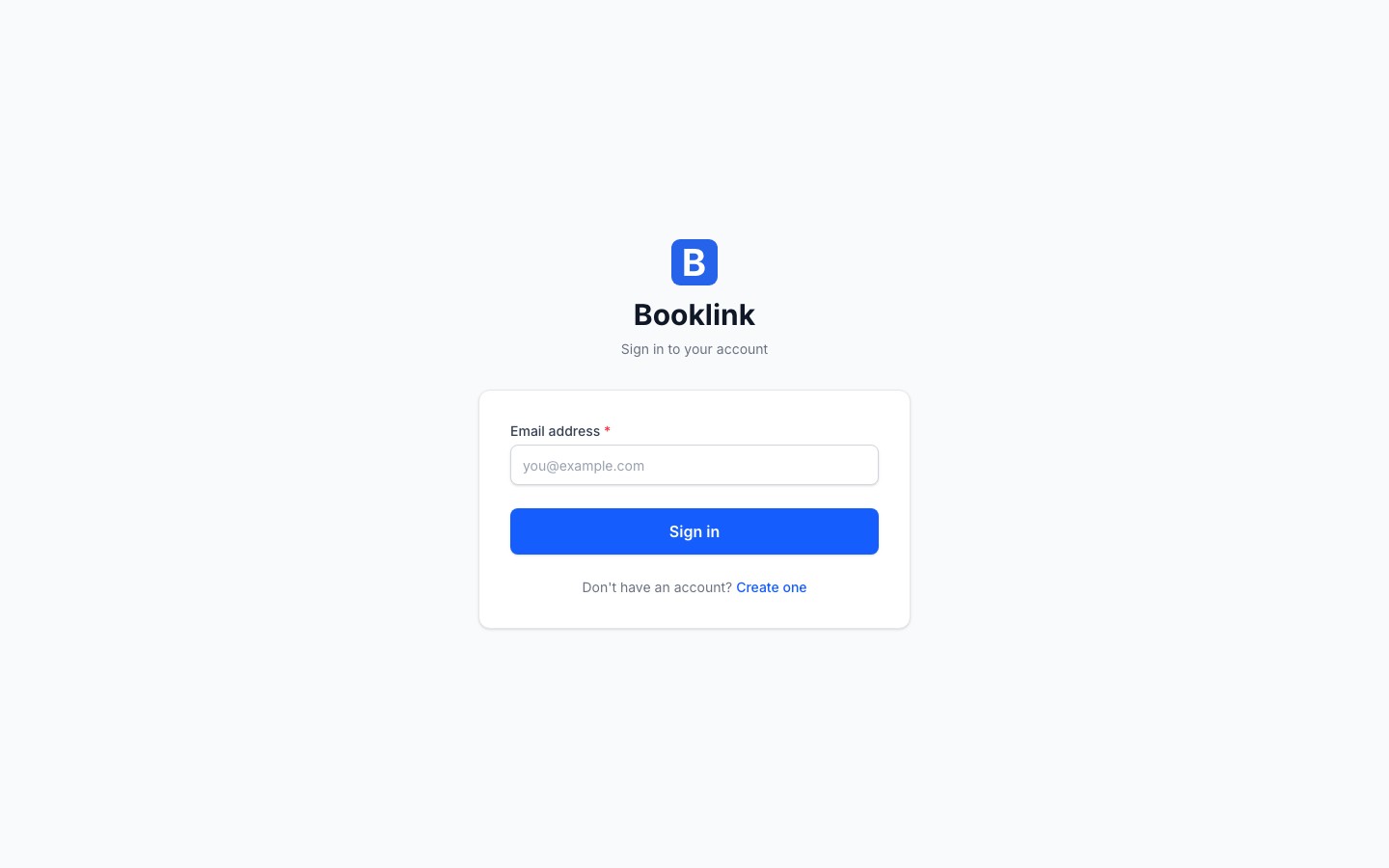
Enter the verification code
Type the 6-digit code from your email into the boxes provided and click Verify. Once verified, you'll be taken straight to your dashboard.
- 5
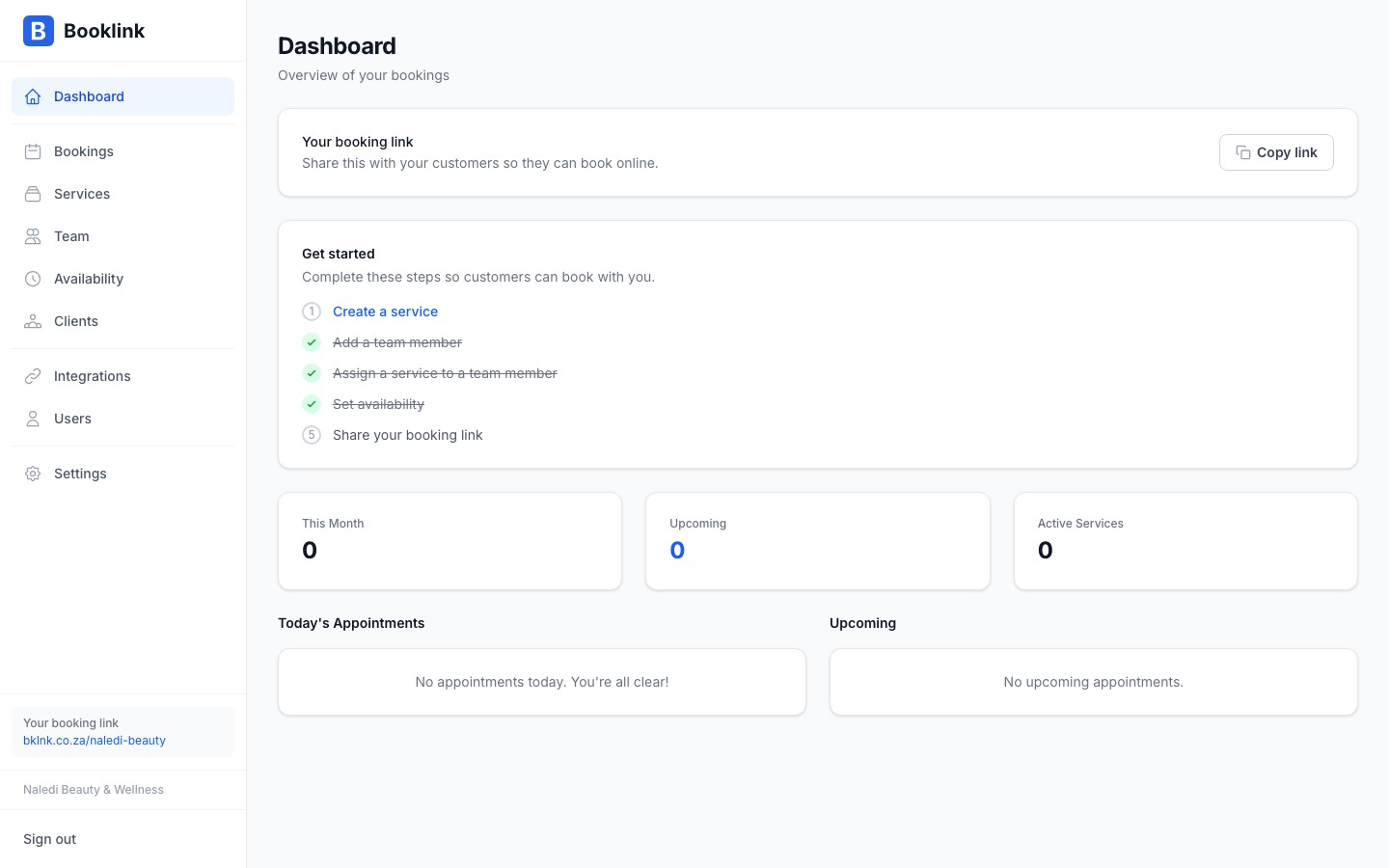
Complete the setup checklist
Your dashboard shows a setup checklist to help you get started. Work through the steps to add your first service, set your availability, and share your booking link.
Choosing your slug
Your slug is part of your public booking URL and cannot easily be changed later without affecting existing links you've shared. Choose something that matches your business name and is easy for clients to remember, such asnaledi-beauty or joe-fitness. Note
Booklink uses passwordless authentication — you never create a password. Each time you log in, a fresh OTP is sent to your email address. This keeps your account secure without the hassle of remembering a password.