Booklink supports online payments through South African payment gateways. Once you connect a gateway, you can set a price on any service and require clients to pay at the time of booking. This reduces no-shows and means money is in your account before the appointment.
Supported payment gateways
Booklink currently supports three South African payment providers:
- Yoco — popular with small South African businesses, accepts major debit and credit cards, quick sign-up.
- Paystack — widely used across Africa, supports card payments, competitive fees.
- PayFast — established South African gateway, accepts cards, EFT, and SCode payments.
You only need to connect one payment gateway. Choose the one you already have an account with, or the one whose fees and features suit your business best.
Payment gateway requirements
To connect a payment gateway you will need:
- An active merchant account with the chosen provider
- Your API credentials (public key and secret key, or merchant ID and passphrase depending on the provider)
- Payment integrations are only available on a paid Booklink subscription

How to connect
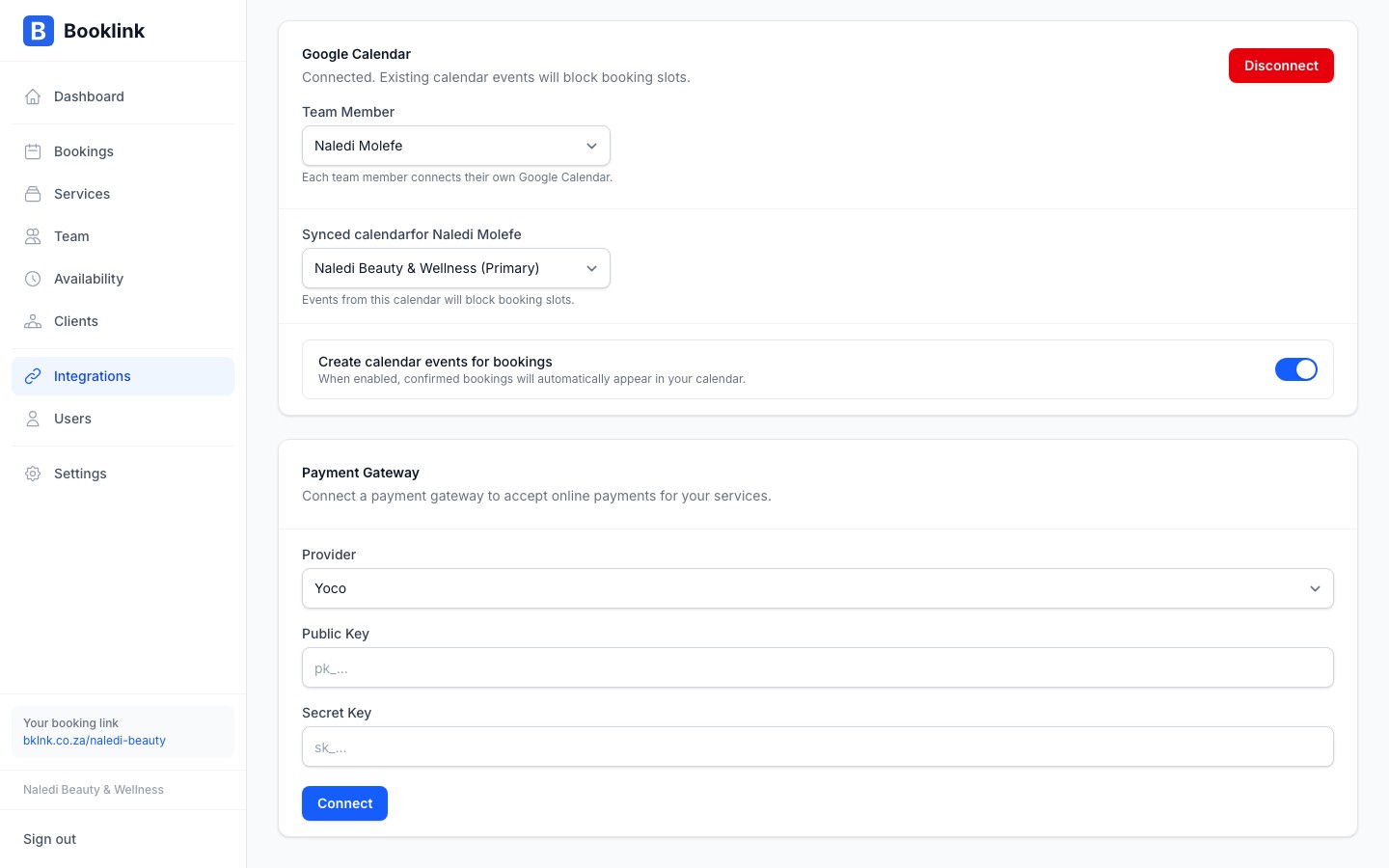
Go to Integrations in the main menu and find the Payments card. Click Set up payments and follow the prompts to enter your gateway credentials. For step-by-step instructions for each provider, see the Payment gateway setup article.
Making a service require payment
Once your payment gateway is connected, open any service in your Services section and set a price greater than R0. Booklink will automatically direct clients to checkout when they book that service. Services priced at R0 remain free and skip the payment step.
Test before going live
Most payment providers offer a test or sandbox mode. Use this to make a test booking through your own booking page and verify that payment, confirmation emails, and the dashboard all update correctly before accepting real client payments.