Connecting Google Calendar allows Booklink to see when you (or a team member) are already busy and automatically block those times from being booked. It is the most effective way to prevent double-bookings when you use Google Calendar for personal or other business appointments.
How it works
Once connected, Booklink checks your Google Calendar in real time whenever a client views available time slots on your booking page. Any calendar events marked as Busy are hidden from the available slots shown to clients. You do not need to manually block time — simply add events to your Google Calendar as normal and Booklink handles the rest.
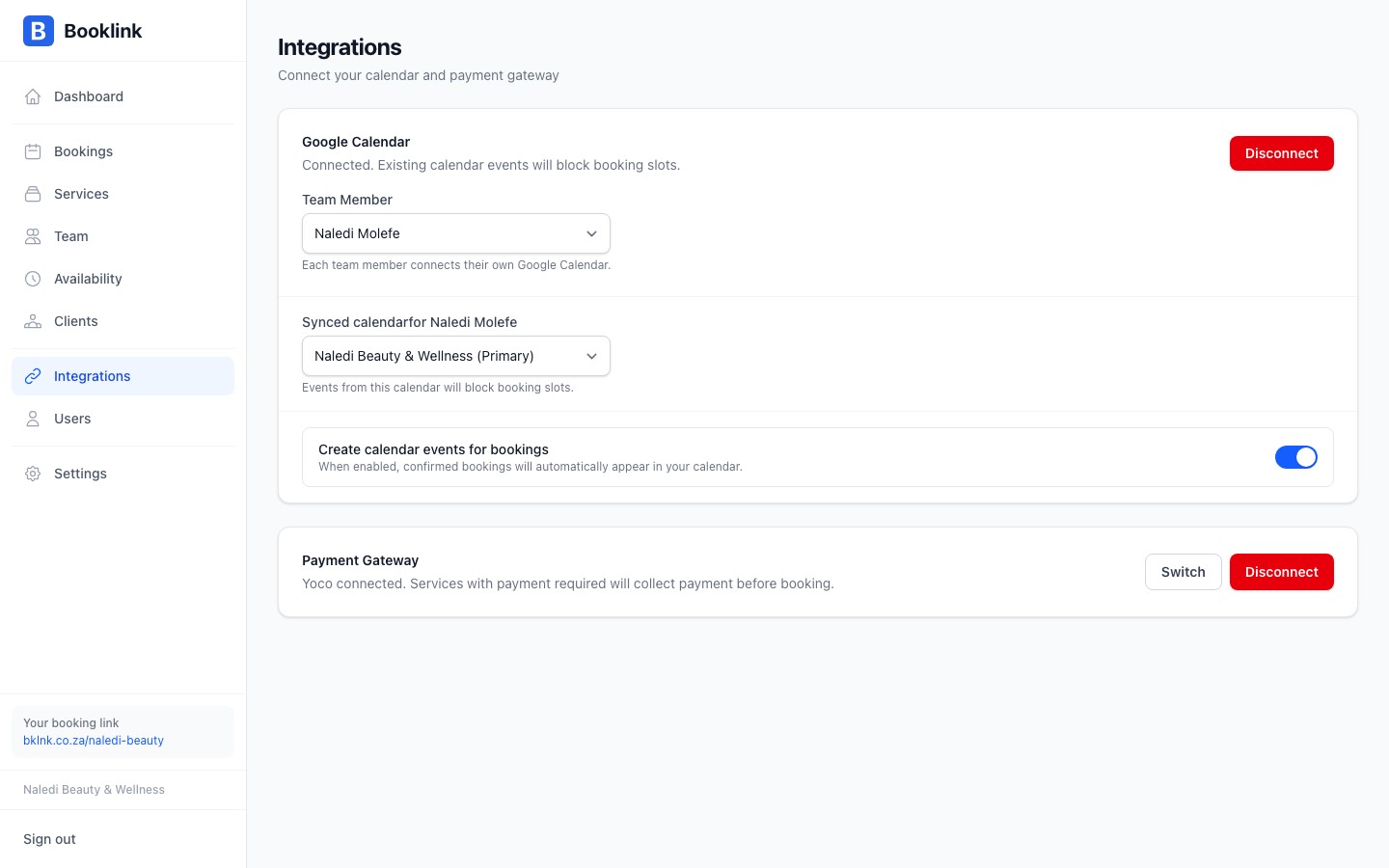
Connecting Google Calendar
- 1
Go to Integrations
Navigate to Integrations in the main menu. You will see a Google Calendar card showing the current connection status.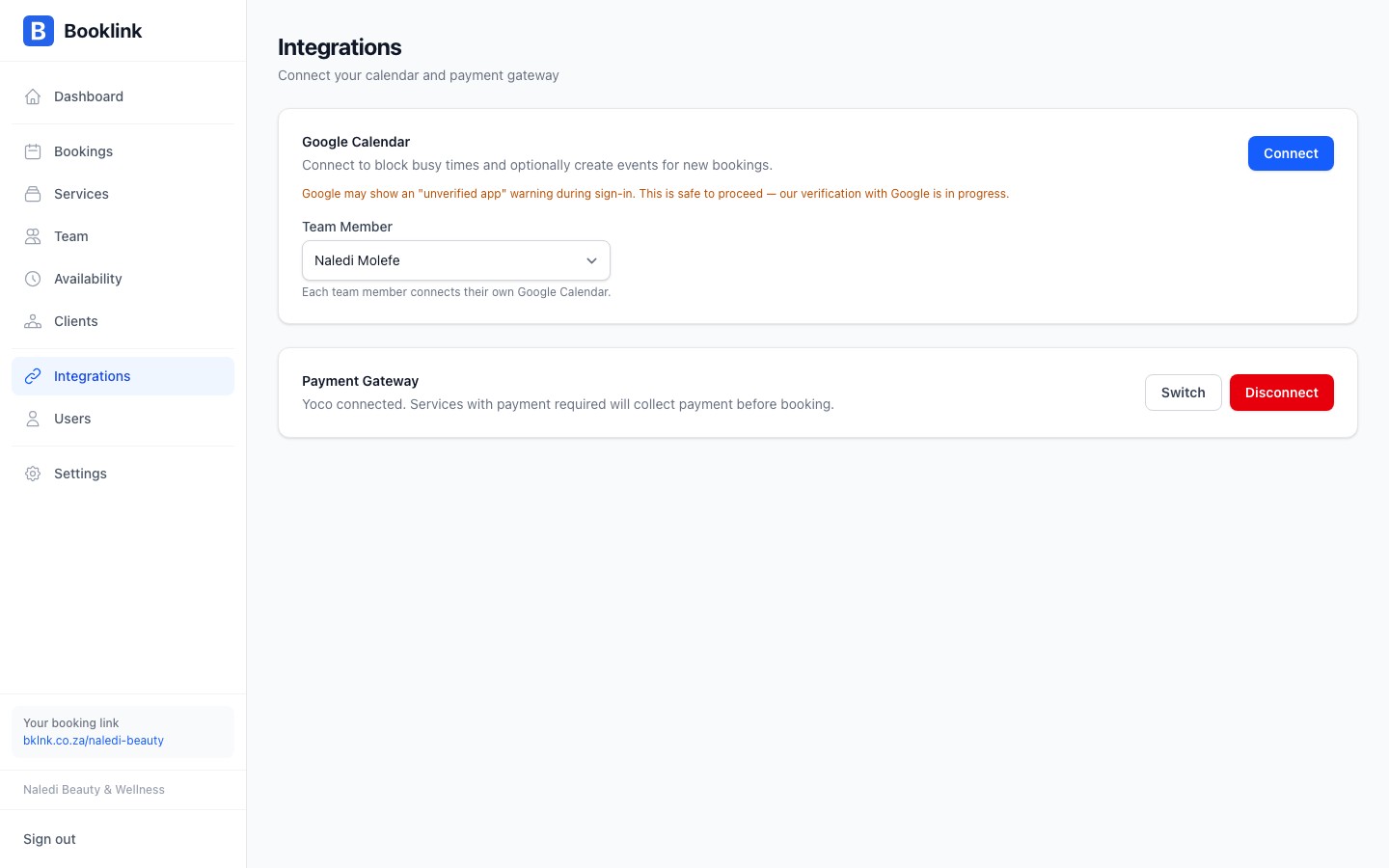
- 2
Click Connect
Click the Connect Google Calendar button. You will be redirected to Google's OAuth consent screen. - 3
Grant calendar access
Sign in to the Google account whose calendar you want to use. Review the permissions Booklink is requesting (read access to see busy slots, and optionally write access if you want Booklink to create calendar events for new bookings), then click Allow. - 4
Integration is active
You are returned to the Integrations page. The Google Calendar card now shows as Connected with the linked Google account email displayed.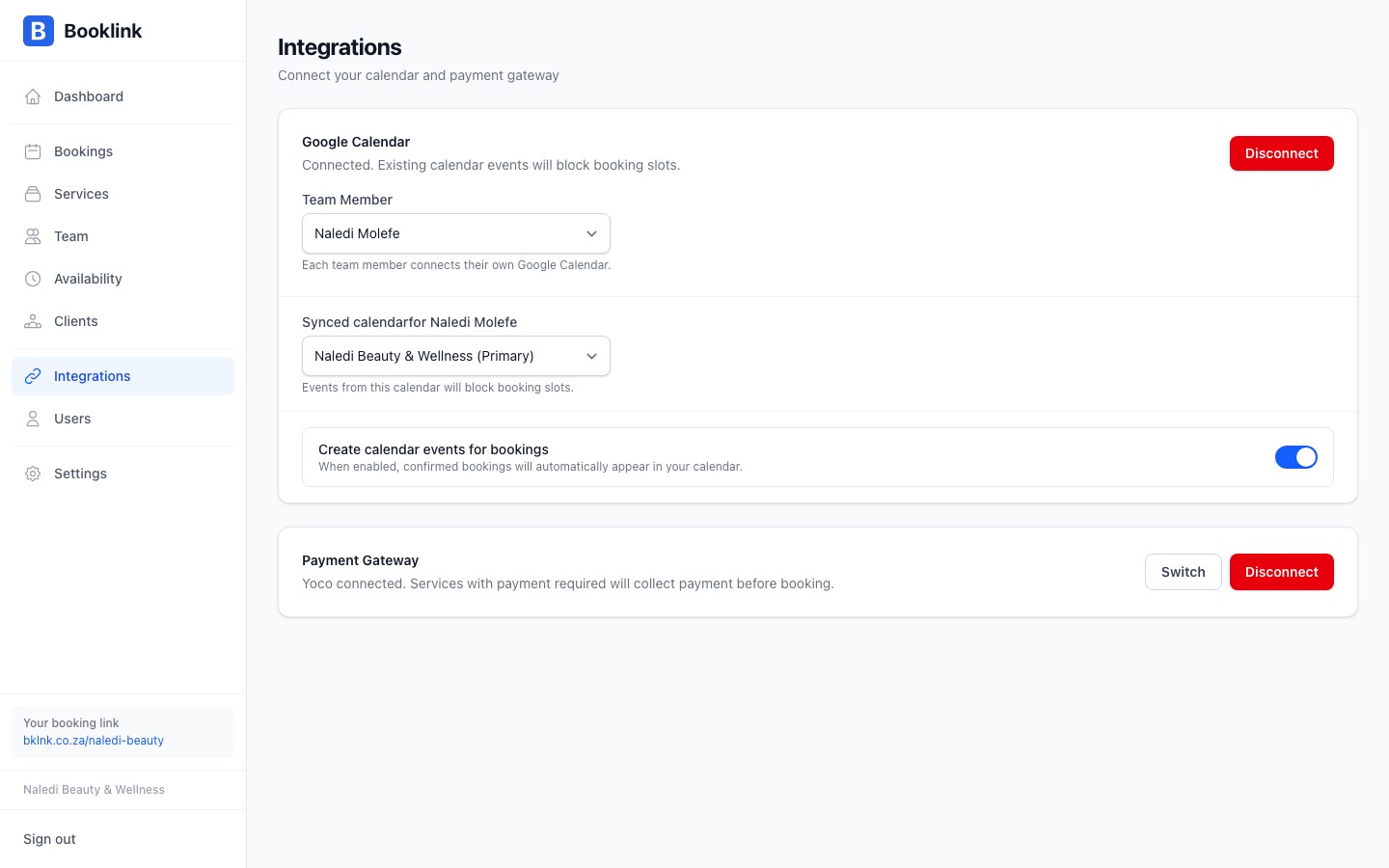
Per team member setup
Google Calendar integration is set up per team member, not just once for the whole account. Each team member can connect their own personal or work Google Calendar. When Booklink checks availability for a specific team member, it consults that team member's connected calendar.
To connect a calendar for a team member, that team member should log in to Booklink with their own user account and follow the connection steps above under Integrations.
Disconnecting Google Calendar
To disconnect, go to Integrations → Google Calendar and click Disconnect. This immediately stops Booklink from reading your calendar. Existing bookings are not affected, but your calendar events will no longer block new booking slots.
Use a dedicated Google account
If you prefer to keep your personal Google account separate, create a dedicated Google account for your business and connect that. You can then add personal busy times to a shared calendar that both accounts can see.