After connecting Google Calendar, you can fine-tune how Booklink uses it: which specific calendar to check for busy slots, and whether new Booklink bookings should automatically appear as events in your Google Calendar.
Selecting which calendar to check
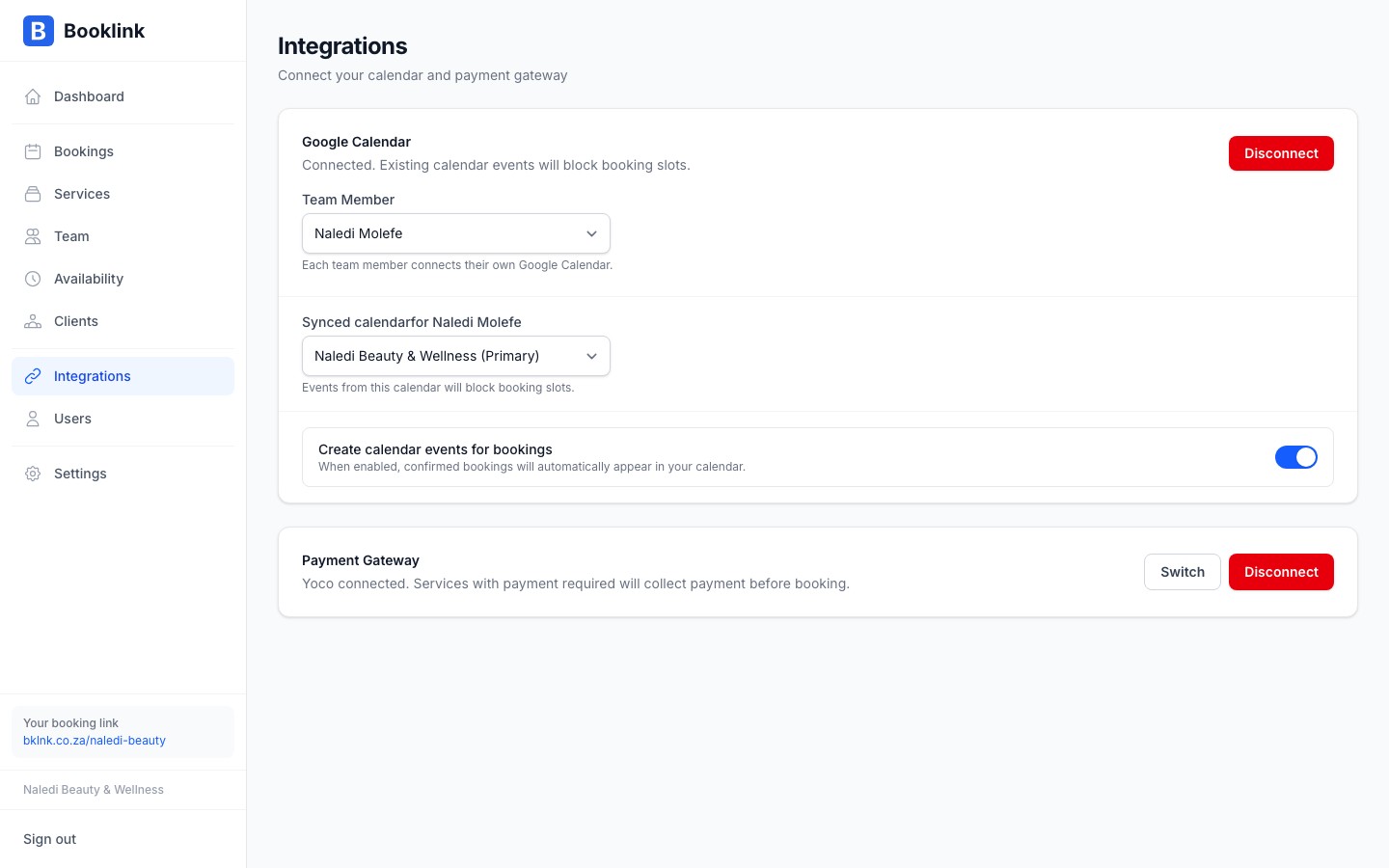
A Google account can have multiple calendars (for example, Personal, Work, Holidays). When Booklink checks your availability, it needs to know which calendar to look at. By default it checks your primary calendar, but you can change this.
Go to Integrations → Google Calendar and look for the Calendar to check selector. A dropdown lists all the calendars visible in your connected Google account. Select the one whose events should block booking slots.
Creating calendar events for bookings
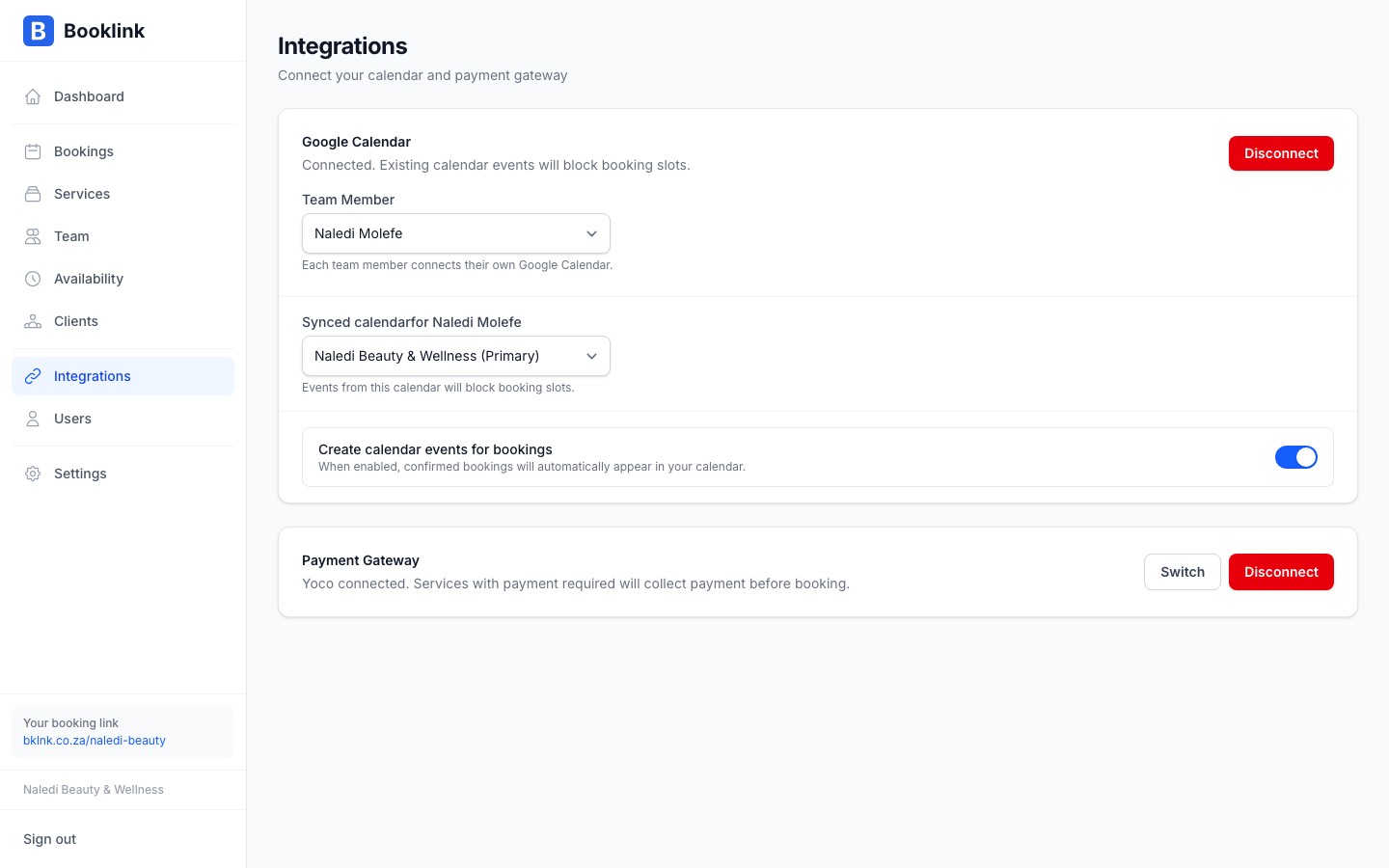
Booklink can automatically create a Google Calendar event every time a new booking is confirmed. This means your Google Calendar always reflects your actual appointment schedule without you needing to add events manually.
To enable this, toggle on Create calendar events for bookings under Integrations → Google Calendar.
When this is enabled, each confirmed booking creates an event in the selected calendar with:
- The service name as the event title
- The client's name, email, and phone number in the event description
- The start and end time matching the booking duration
Cancelled bookings do not automatically remove the calendar event — you will need to delete it manually from Google Calendar.
Avoid a feedback loop
When Booklink creates a calendar event for a booking, that event will also appear as a "busy" slot in the same calendar. This is fine — it just means the same slot correctly shows as unavailable. You will not get double events or duplicated bookings.Write permission required
Creating calendar events requires write access to your Google Calendar. If you originally connected with read-only access, you may need to disconnect and reconnect, granting the additional permission when prompted.