This article walks through the exact credentials you need from each payment provider and where to find them. You only need to set up one provider — choose the one that fits your business.
Opening the payment setup form
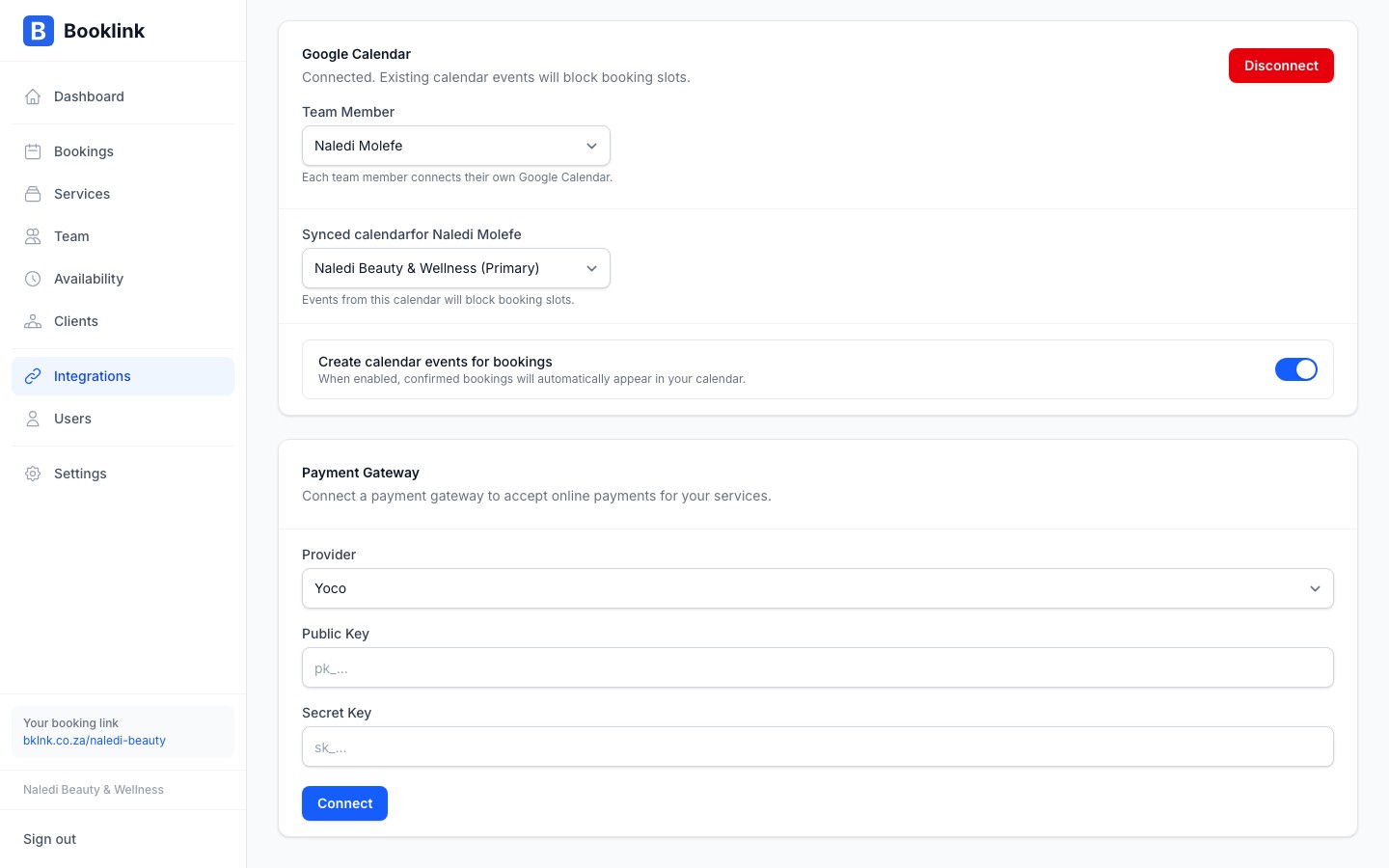
Go to Integrations in the main menu, find the Payments card, and click Set up payments. The setup form opens. Select your payment provider from the dropdown to see the relevant credential fields.
Setting up Yoco
- 1
Get your Yoco API keys
Log in to your Yoco Business Portal at portal.yoco.co.za. Navigate to Settings → Developers (or API Keys). Copy your Live Public Key and Live Secret Key. - 2
Enter the keys in Booklink
In the Booklink payment setup form, select Yoco as your provider. Paste your Public Key and Secret Key into the respective fields. - 3
Save and test
Click Save. Set a price on a test service, make a booking through your public page, and complete a card payment to verify the integration is working.
Setting up Paystack
- 1
Get your Paystack API keys
Log in to your Paystack Dashboard at dashboard.paystack.com. Go to Settings → API Keys & Webhooks. Copy your Live Public Key and Live Secret Key. - 2
Enter the keys in Booklink
Select Paystack as your provider in the Booklink setup form. Paste your Public Key and Secret Key. - 3
Save and test
Click Save and make a test booking to verify.
Setting up PayFast
- 1
Get your PayFast credentials
Log in to your PayFast account at payfast.co.za. Navigate to Settings → Integration. Copy your Merchant ID and Merchant Key. If you have set a passphrase, you will also need that. - 2
Enter credentials in Booklink
Select PayFast as your provider in the Booklink setup form. Enter your Merchant ID, Merchant Key, and passphrase (if set). - 3
Save and test
Click Save and make a test booking to verify.
Use live credentials, not test credentials
Enter your live API credentials in Booklink. Test/sandbox credentials from your payment provider dashboard will not process real payments. Always do a small live test transaction to confirm everything is working correctly.