Your booking page is often the first impression a new client has of your business. Booklink lets you add your logo, set a memorable URL, write a tagline, and control whether team members are visible to clients — all from the Settings section of your dashboard.
Your booking page slug
Your slug is the last part of your booking page URL. For example, if your slug is naledi-beauty, your booking page is at booklink.co.za/to/naledi-beauty.
To change your slug, go to Settings → Business information and update the Booking link slug field. Slugs must be lowercase, contain only letters, numbers, and hyphens, and be unique across all Booklink accounts.
Changing your slug breaks old links
If you change your slug, any links you have already shared (in Instagram bio, WhatsApp, etc.) will stop working. Update all your shared links after making the change.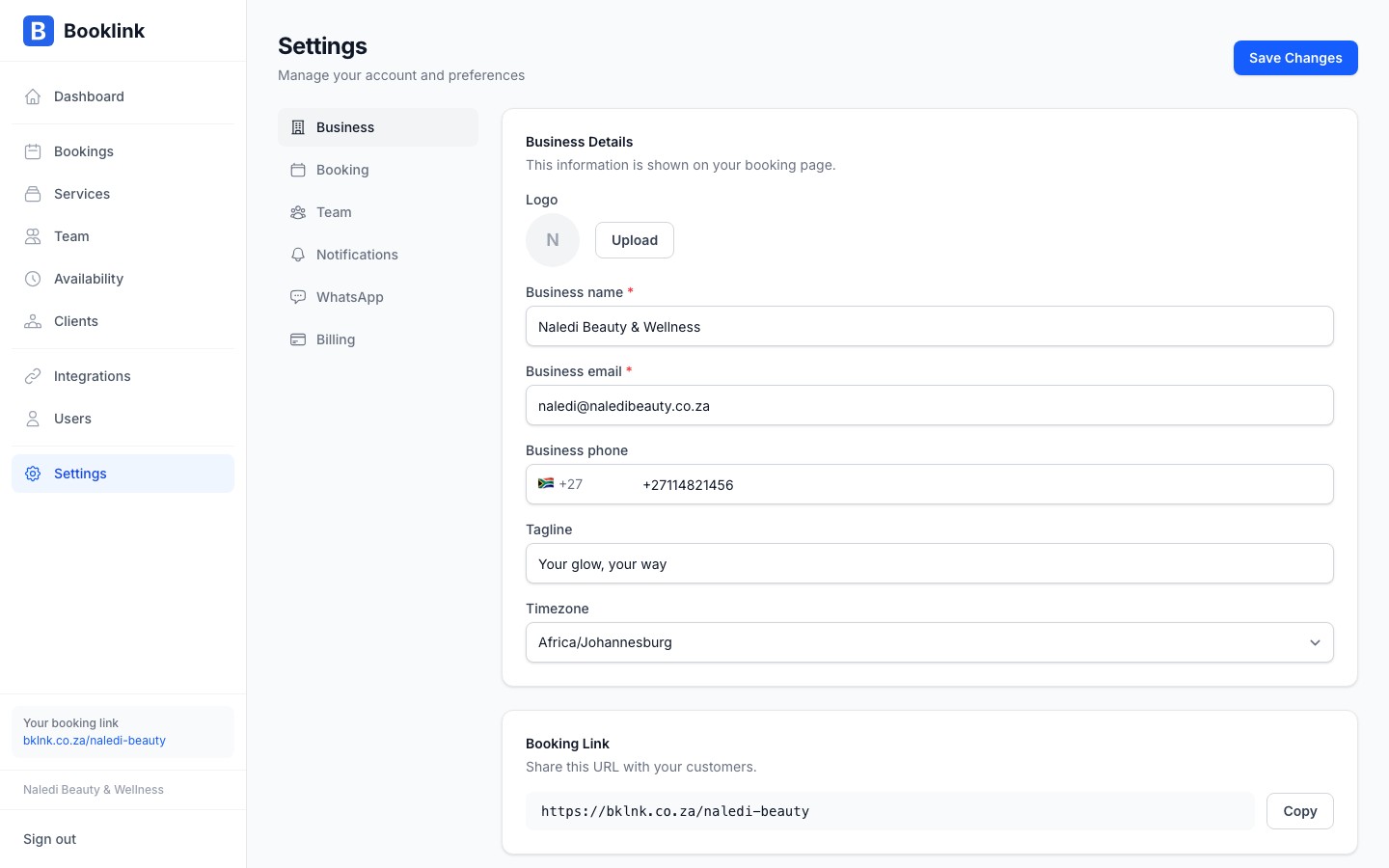
Business name and tagline
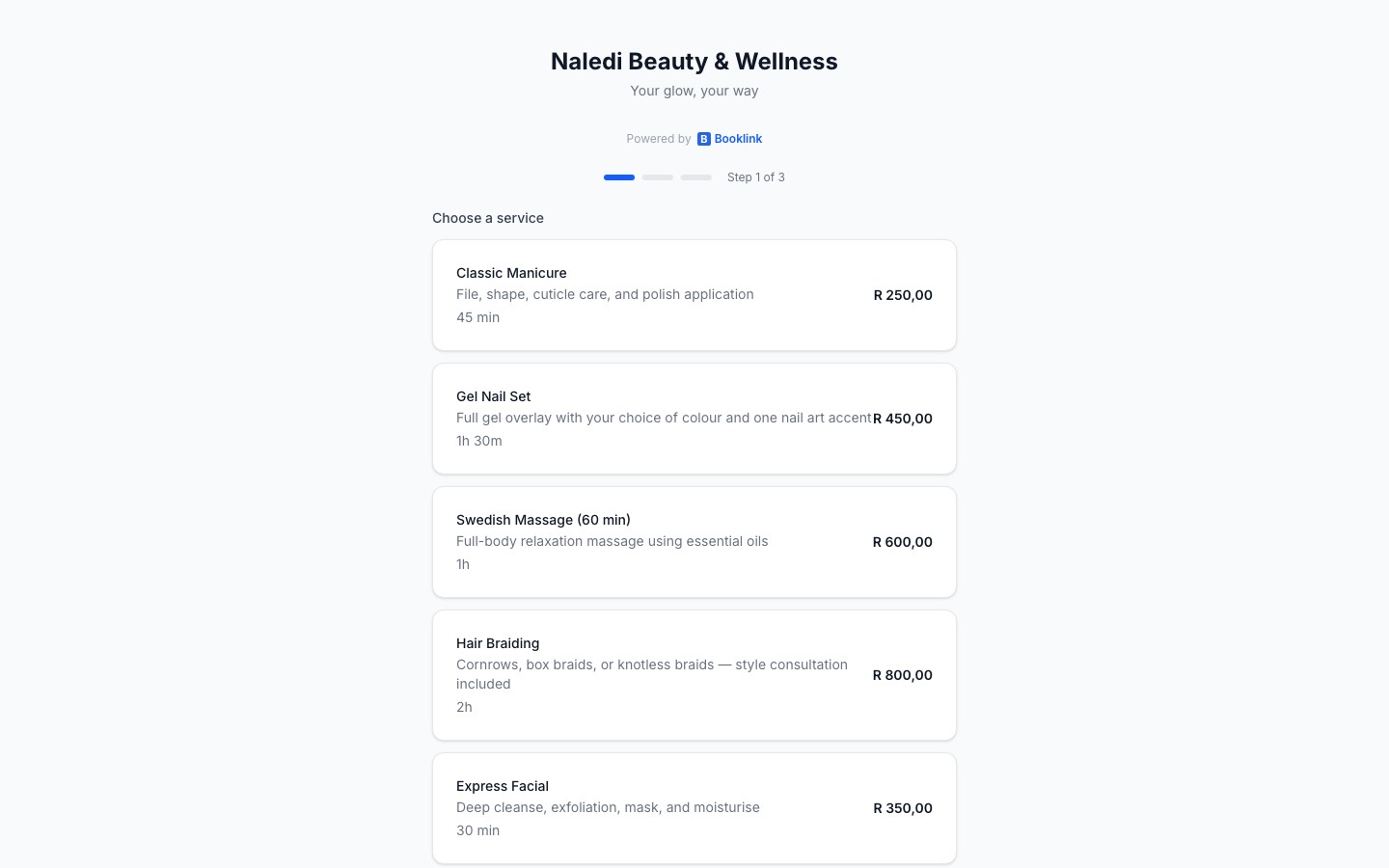
Your business name appears as the heading on your booking page. Your tagline (optional) appears below the name as a short description — for example, "Lash extensions & brow shaping in Sandton". Both are set in Settings → Business information.
Uploading a logo
Upload your business logo in Settings → Business information by clicking the logo upload area. The logo is displayed at the top of your booking page above your business name. For best results, use a square or circular image with a transparent background, at least 200 × 200 pixels.
Team visibility
You can choose whether clients can see and select a specific team member when booking. Go to Settings → Team display to toggle this:
- Visible — clients see a team member selection step with names and photos
- Hidden — the team selection step is skipped; Booklink assigns a team member automatically
Keep your tagline short
A good tagline is one sentence that tells a new visitor exactly what you do and where. For example: "Nail art, lash extensions, and facials in Johannesburg." This helps clients quickly decide if they are in the right place.