By default, only the account owner can log in to Booklink. If you want a team member to manage their own availability, view their bookings, or update their profile, you can create a login for them. Each team member with login access uses their own email address to receive a one-time password when they sign in.
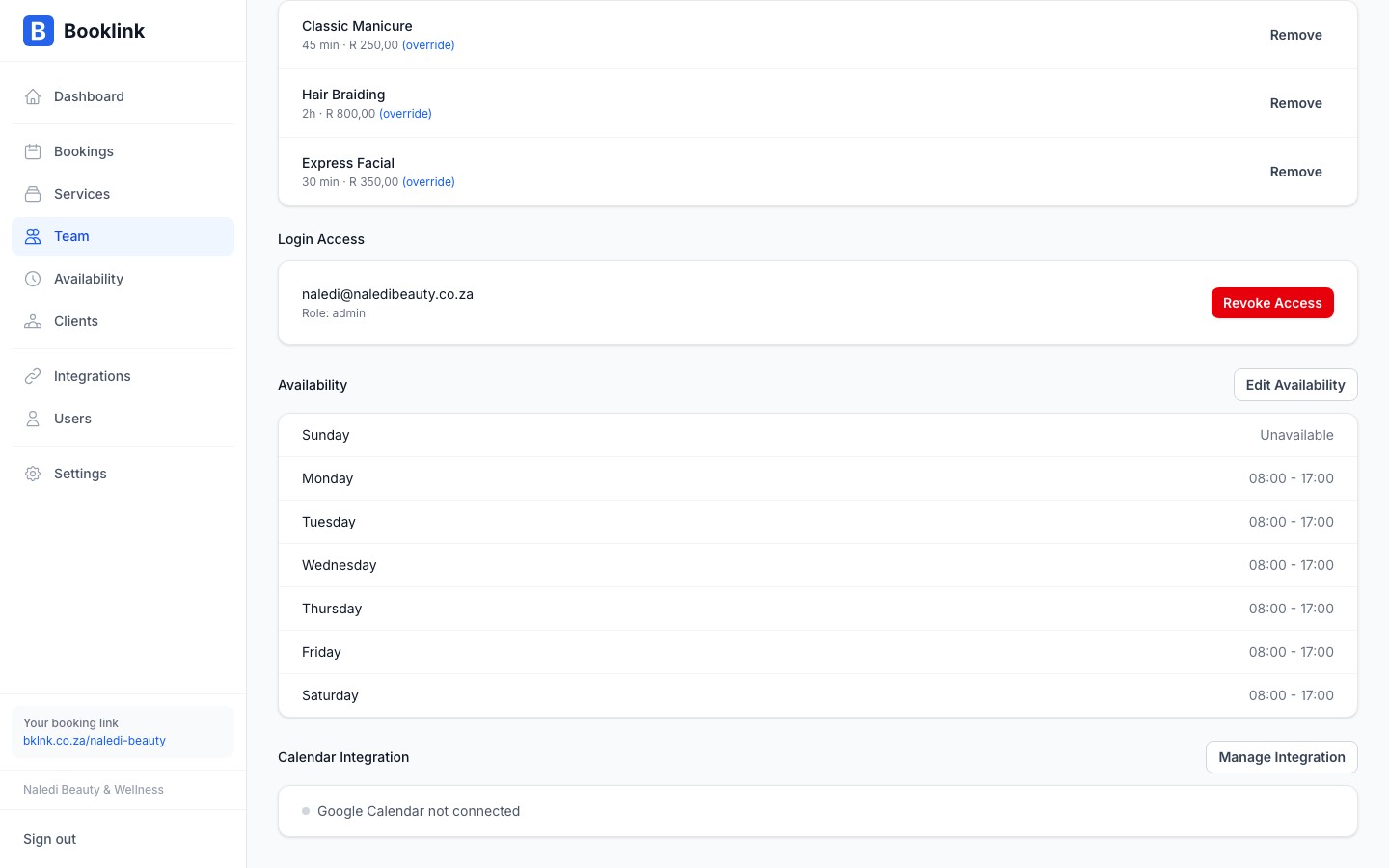
Creating a login for a team member
How to grant login access
- 1
Open the team member's profile
Navigate to Team and click on the team member's name to open their detail page.
- 2
Find the Login Access section
Scroll down to the Login access section. If the team member doesn't yet have a login, you'll see a Create login button.
- 3
Enter their email address
Enter the team member's email address. This is the address they'll use to receive their one-time password when logging in. It should be an email they check regularly and have secure access to.
- 4
Save and notify the team member
Click Create login. Booklink creates the account. Let the team member know they can now log in at app.booklink.co.za/login using their email address.
What can team members do when logged in?
Team members with login access can:
- View their own upcoming bookings
- Update their availability schedule
- Edit their profile (name, title, bio)
- Connect their Google Calendar for automatic busy-time blocking
Team members cannot access billing settings, other team members' data, or account-level configuration. Only the account owner has full access.
Important
Only grant login access to people you trust. A team member with login access can modify their own availability, which directly affects what time slots clients can book. Ensure team members understand how the system works before giving them access.Removing login access
If a team member leaves your business, deactivate their team member record and remove their login access from the Login Access section on their profile. This prevents them from logging in while preserving their historical booking records.