The Team Members page lets you manage all the people in your business who provide services to clients. Each team member has their own profile, availability schedule, and set of assigned services. Clients can choose which team member they'd like to book with when making an appointment.
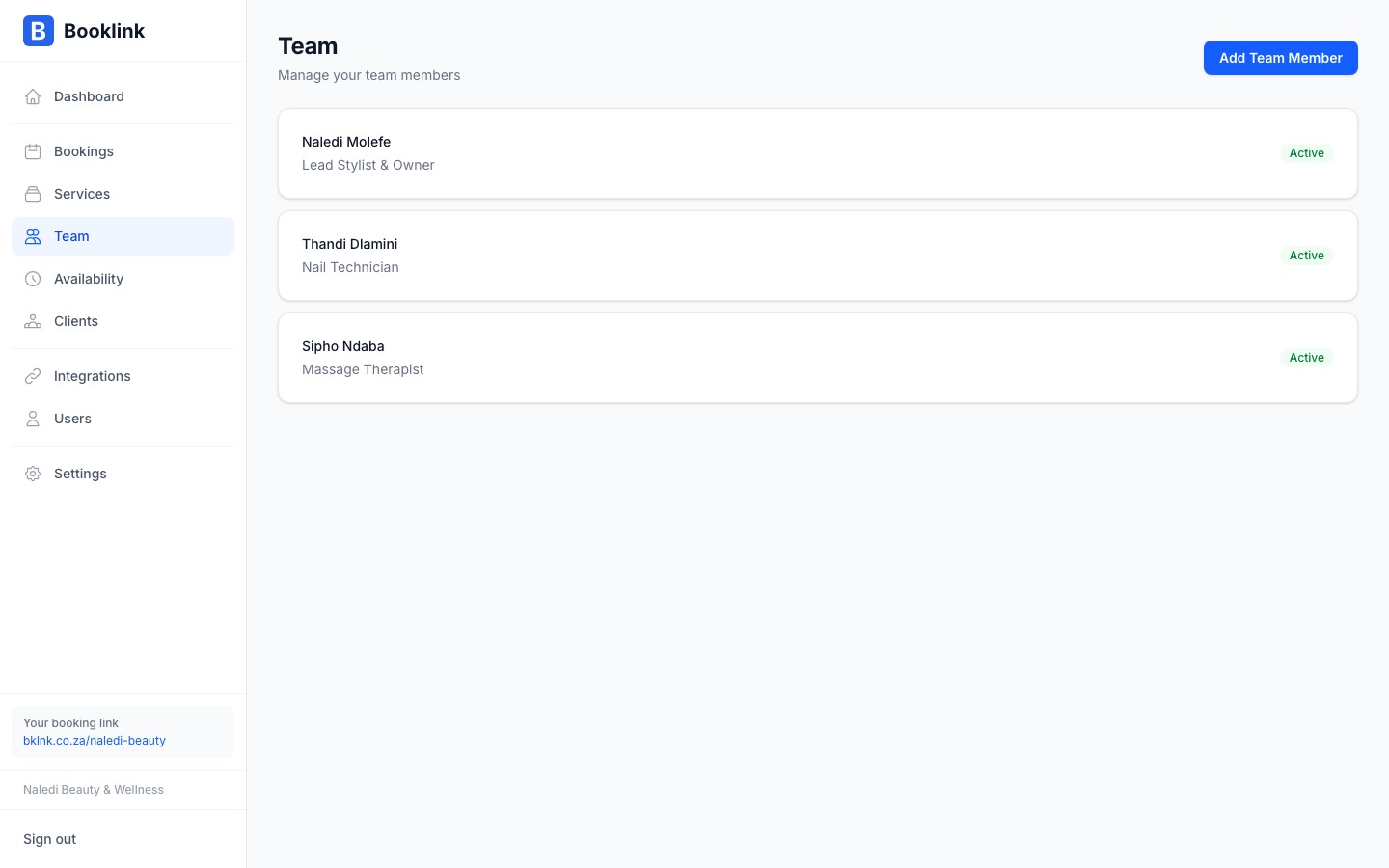
The team list
Each team member card shows:
- Name and title — Their display name and job title (shown to clients)
- Active toggle — Whether this team member is currently available for booking
- Sort order — The position in which they appear on the booking page
- Assigned services — A summary of which services they offer
Click on a team member's name to open their detail page and manage their profile, availability, and service assignments.
Active and inactive team members
An active team member is visible on your booking page. Clients can select them when booking a service. An inactive team member is hidden from the booking page — no new bookings can be made with them — but their profile and history are preserved.
Set a team member to inactive if they are on extended leave, have left the business, or if you want to temporarily remove them from the booking flow without deleting their record.
Sort order
The sort order field controls the sequence in which team members appear on your public booking page. Lower numbers appear first. For example, to display Naledi first followed by Thandi, set Naledi's sort order to 1 and Thandi's to 2.
Use sort order to highlight senior staff
If you have a lead stylist or senior technician you want clients to see first, give them a sort order of 1. Junior or supporting staff can have higher numbers.