Users are the people who can log in to your Booklink dashboard. As the account owner, you can invite additional users — for example, a receptionist who manages bookings, or a team member who needs to check their own schedule. Each user has a role that controls what they can see and do.
The users list
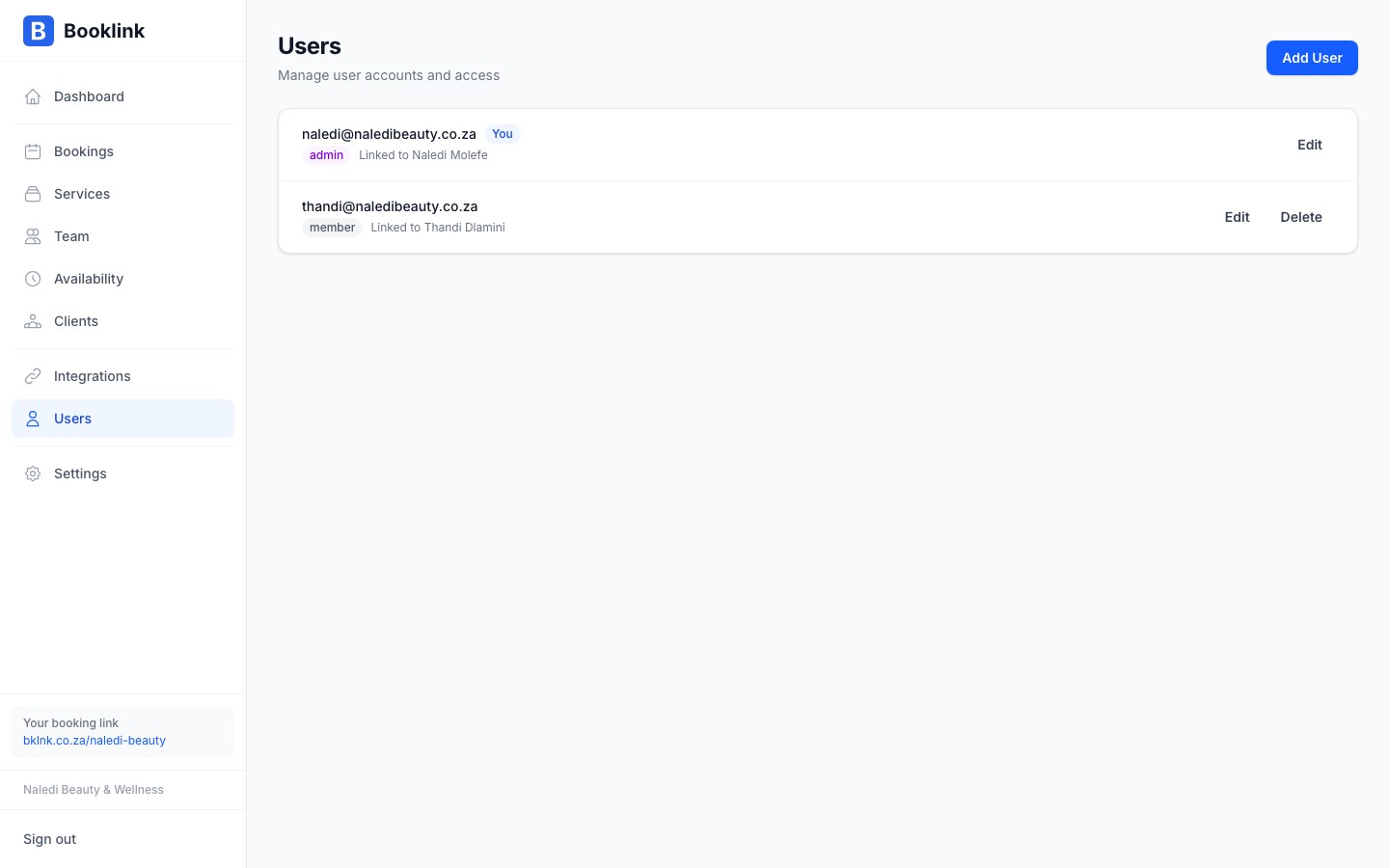
Go to Users in the main menu to see everyone who has access to your account. Each row shows the user's name, email address, role, and when they last logged in.
Inviting a new user
Click + Add user to invite someone. Enter their email address, choose their role, and optionally link them to a team member (see the article on linking users to team members for details). They will receive an email invitation with a link to set up their password and access the dashboard.
Removing a user
To remove a user's access, click their name in the list and click Delete user. This immediately revokes their ability to log in. Their bookings, actions, and history within your account are not deleted — only the login access is removed.
The owner account cannot be deleted
The original account owner (the email used to create the Booklink account) cannot be removed from the users list. To transfer ownership, contact Booklink support.