Every Booklink user has a role that determines what they can see and do in the dashboard. There are two roles: Admin and Member. Assign the right role to each person to keep your account secure and your team focused.
Admin role
Admins have full access to the dashboard. They can:
- View and manage all bookings across all team members
- Create, edit, and deactivate services
- Manage availability schedules for all team members
- View and edit all client records
- Change account settings, including billing and integrations
- Add, edit, and remove other users
Give the Admin role only to people you fully trust with your business data and settings — typically the business owner and any senior managers.
Member role
Members have a restricted view of the dashboard. By default a Member can:
- View their own bookings (bookings assigned to the team member they are linked to)
- Confirm and cancel their own bookings
- View their own availability schedule
Members cannot see bookings for other team members, change account settings, manage services, or access billing. This makes the Member role safe to give to individual staff who only need to manage their own appointments.
Assigning a role
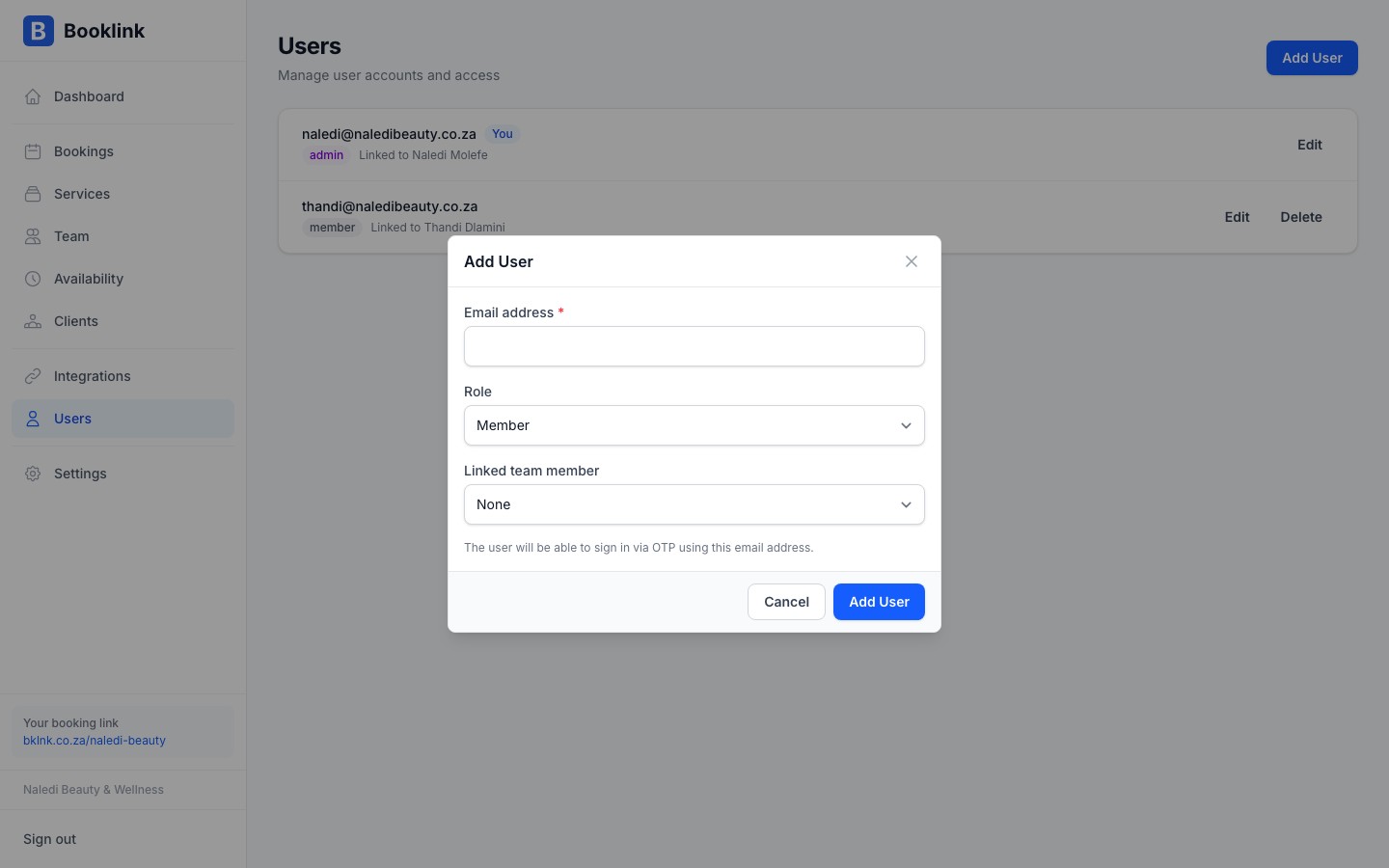
The role is chosen when you add a new user via the Add user form. You can also change an existing user's role by clicking their name in the Users list and editing the role field, then saving.
Members need to be linked to a team member
For a Member-role user to see their own bookings, they must be linked to a team member profile in your account. Without this link, they will see an empty dashboard. See the article on linking users to team members.